Fill the ZATCA legal entity
Updated
Fill the seller VAT number, commercial registration, and address so the Saudi package can stamp a released sales realization, credit note, or debit note.
Note
You do not send from the sales realization card. The package stamps the envelope when the source document is posted. Tax registration number is the 15-digit VAT number. Commercial registration is a different field. The VAT number does not stand in for it.
How to#
To fill the seller, open Ribbon → Organization → Dictionaries → Legal entities.
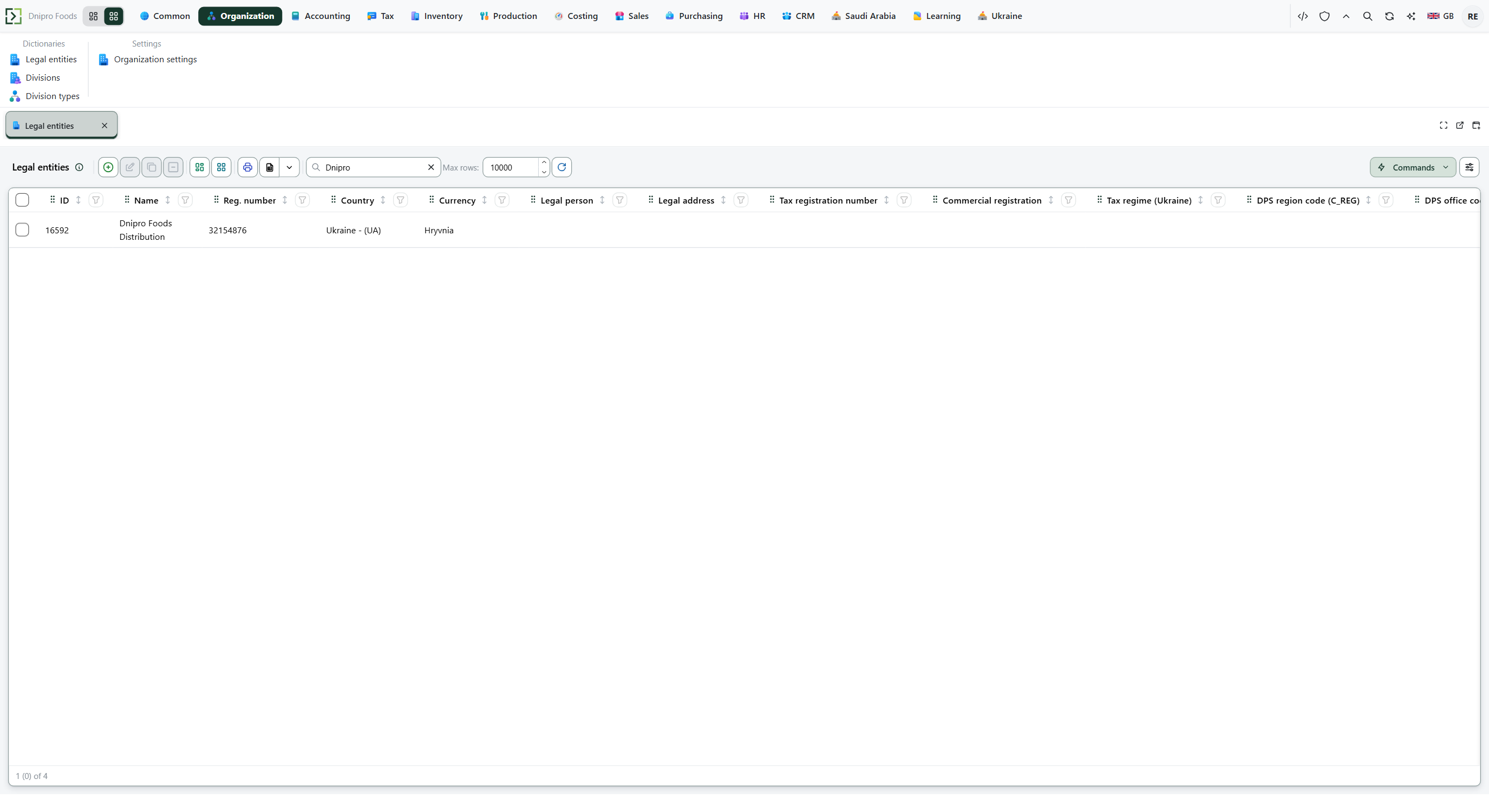 Legal entities list. Open the company and fill Tax registration number and Commercial registration. The product is in English.
Open the company. Fill Tax registration number with the 15-digit KSA VAT number. Fill Commercial registration. Save.
Open Legal address, or open Ribbon → Common → Dictionaries → Addresses and pick that address. Fill Country, District, Street, Building, and Postal code. In KSA, Building is four digits. Save. Without Country and District, the package cannot assemble the stamp.
Open Ribbon → Sales → Dictionaries → Customers. Open the buyer. Fill Tax reg. number when this is a standard (B2B) e-invoice. Open Address and fill the same address fields as the seller: Country, District, Street, Building, and Postal code. Save. Standard or simplified is chosen by the buyer's tax number, not by Customer type. A buyer with a tax number is standard. A buyer without one is simplified.
Release the sales realization as usual. Open Ribbon → Tax → Documents → Tax documents and read the envelope. A posted credit note and a posted debit note get the same stamp (hash and QR). A debit note is extra charges: it does not copy the sales realization lines. Credit and debit notes name the original document in Original invoice. A goods return is a stock document, not a tax invoice.
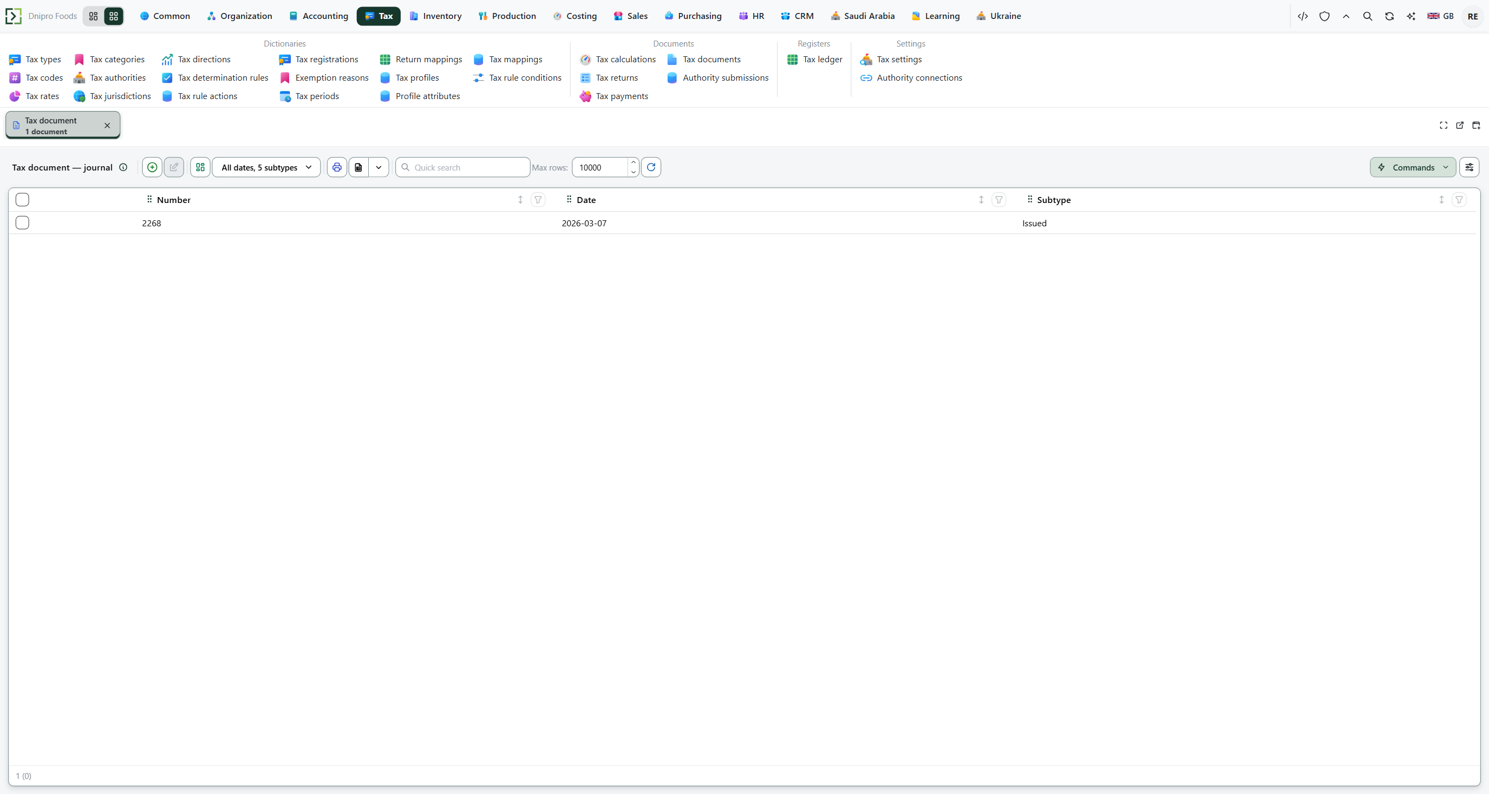 Tax documents list: each released sales realization, credit note, or debit note gets an envelope. The product is in English.
A standard e-invoice must not go to the buyer until that envelope is Cleared. A simplified e-invoice may go as soon as it is Issued. The outcome job runs every minute; until it answers, the envelope stays Issued.
Example
- Tax registration number 15-digit KSA VAT number
- Commercial registration a separate number
- Legal address country and district filled
- Address country and district filled (buyer)
After you release the sales realization, the tax document carries the hash and the QR. If the buyer has Tax reg. number, wait for Cleared before you print or hand over the tax invoice.
Tip
Open Ribbon → Saudi Arabia → Settings → Saudi Arabia settings. Turn E-invoice (ZATCA) enabled on. Save. For exempt or out-of-scope supplies, open Ribbon → Tax → Dictionaries → Tax categories. Set Treatment to
EXEMPTorOUT_OF_SCOPE, and fill ZATCA exemption reason code (VATEX-SA-…) and ZATCA exemption reason. A zero rate without that treatment goes out as zero-rated. The Authority connections row for this legal entity is Ribbon → Tax → Settings → Authority connections.
If the command refuses#
| What you see | What to do |
|---|---|
| No tax document after you release the sales realization | E-invoice (ZATCA) enabled is off, or the seller VAT, commercial registration, or address is incomplete. Fill those fields, Save, and release again. |
| You cannot hand the tax invoice to the buyer yet | The buyer has Tax reg. number, so this is standard. Wait until the tax document is Cleared. That wait is expected. |
| The envelope stays Issued | The channel has not returned an outcome yet. Wait, then refresh Tax documents. |
| The stamp is missing country or district | Open the seller Legal address and the buyer Address. Fill Country and District. |
| VAT is filled and commercial registration is empty | Fill Commercial registration. Do not copy the VAT number into that field. |
See also