Run a field visit
Updated
Check in at a customer's stop, write a sales order from the phone, and let the office see the visit and the order.
Note
A visit writes no money. Debt, tax, and stock wait for the sales order and then the sales realization. An order written from the visit is linked; an order without a visit does not show on the visit card. Open tasks from the office sit in Tasks on Today; completing one does not write a payment.
How to#
To run a visit, open the field app and run Sync. Today lists today's stops. If the banner says Shift is off. Dispatch will not see a track., tap Start shift when the dispatcher needs a track. You may still check in without it. After the shift starts, Dispatch sees GPS after movement or a heartbeat.
Find the stop and tap Check in. The visit workspace opens with a Checked in card. No GPS fix still opens the visit; Geo status stays NoGeo. Below the buttons the same snapshot as the customer card is already there: Outstanding (the live receivable), last order and what was on it, what sells here, earlier visits and notes — from rows this phone already pulled, not a second trip to the stand.
Tap Write Sales Order. The new order copies Customer, Outlet, and Contract from the visit when those fields are known. Add lines. The line shows the cached price; changing quantity may pick another cached tier, and the phone total recalculates. Tap Post Order. The app queues the command until sync. The order appears in the visit Orders list, and the office sees it in the submitted queue unless Confirm order on submit is on in Sales → Settings → Sales settings.
If you need proof of visit, tap Take Photo. The photo appears on the visit shelf and uploads on a later sync once the visit exists on the server.
Tap Check Out, add a note only if needed, and confirm. The stop is marked done.
In the office, add the Sales agents desk widget: Customize → Add widget → Sales agents desk. It shows today's agents, last GPS, routes, and visits. Open Ribbon → Sales → Field → Sales agents desk for the map, or Ribbon → Sales → Field → Agent visits and open the visit: Checked in at, Checked out at, GPS fields, and the linked sales orders.
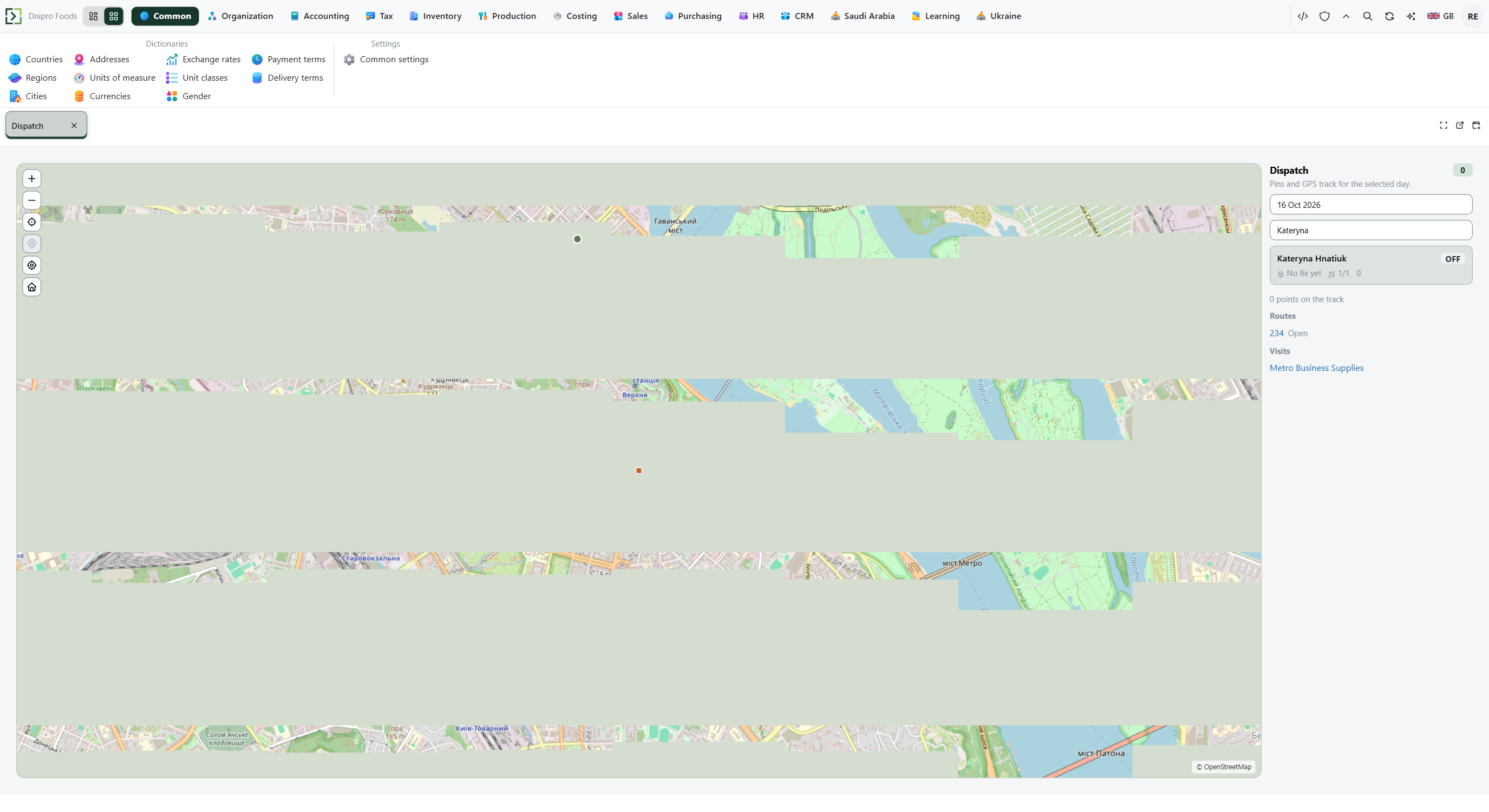 Dispatch: the same day, agents and visits are visible. The product is in English.
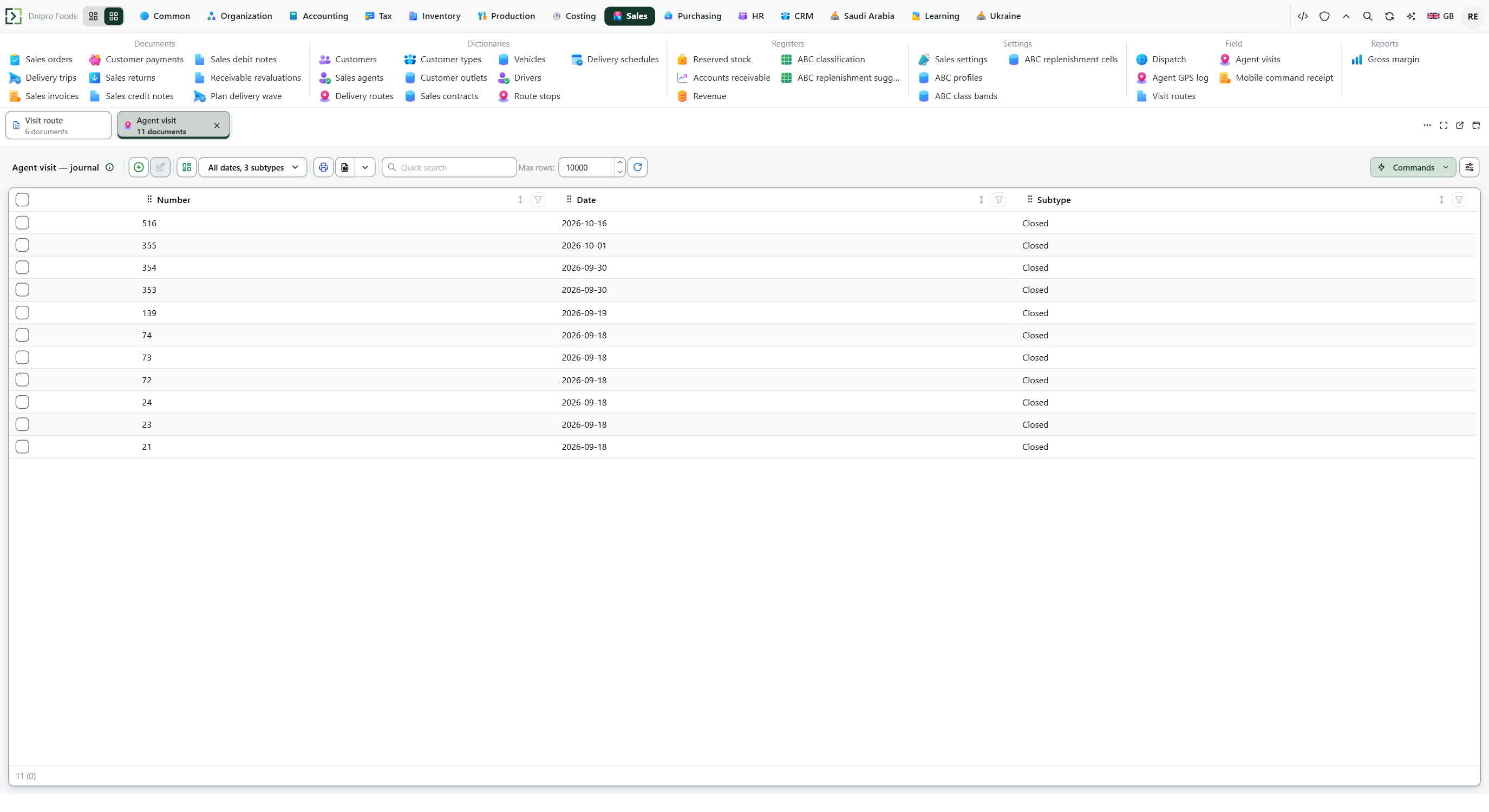 Agent visits list: visits written by the phone are visible after sync. The product is in English.
The office plans the day on Ribbon → Sales → Field → Visit routes. Press New, pick Agent and Route date, fill the stops, Save. On that route card, Check in opens the day.
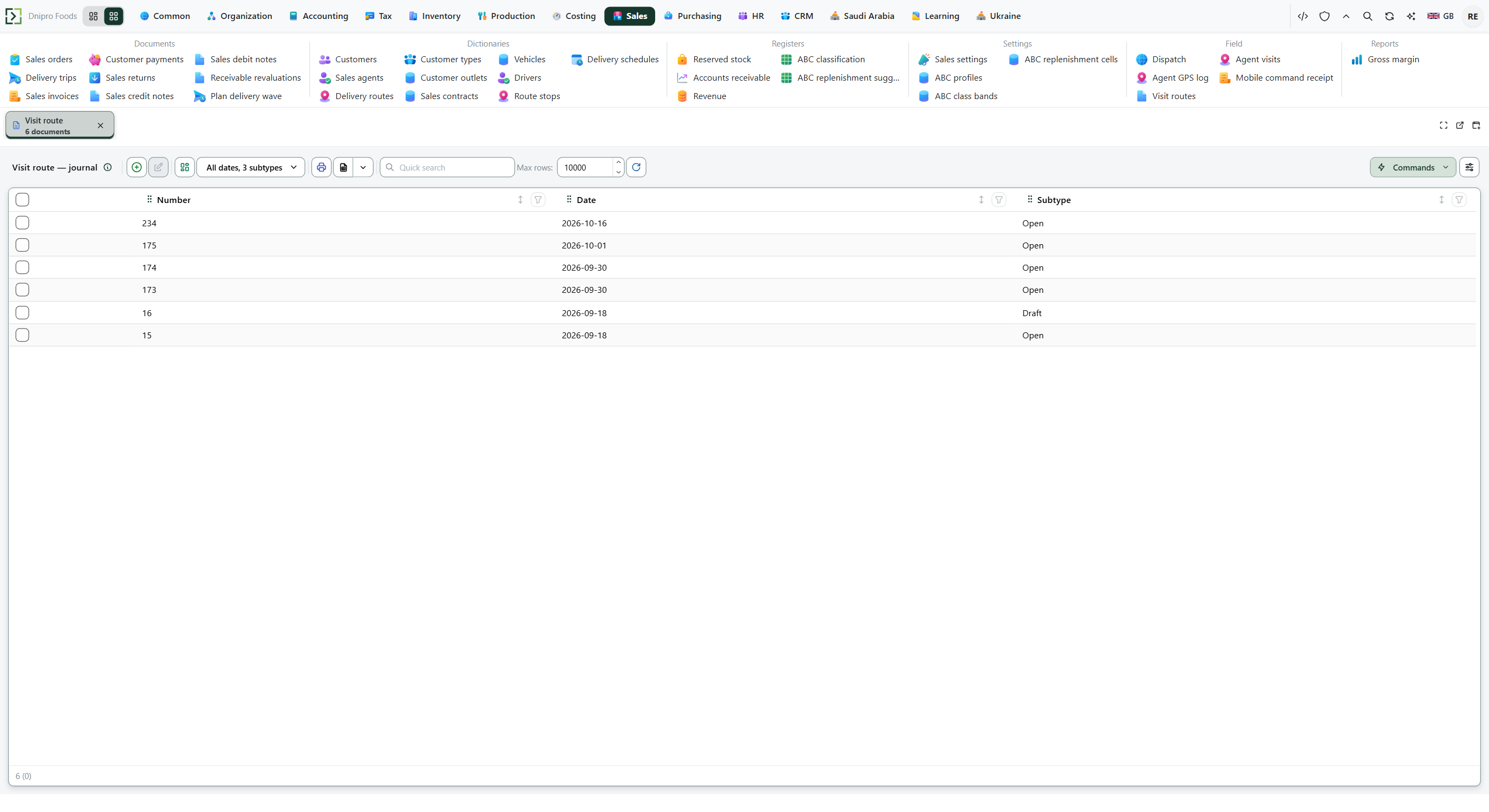 Visit routes list. The office can open the planned day while the phone works through the stops. The product is in English.
The state on the card does not move the visit or the route. Check in, Post Order, and Check out do.
Example
- Route date 30 September
- Stop 1 Khreshchatyk Kiosk, 09:00–10:00
- Quantity 10 packs
- Unit price 185.00
After Post Order:
- Phone total 1850.00
The visit card lists that order. The manager still presses Approve order unless Confirm order on submit already approved it.
Tip
Price and stock on the phone are hints. The server checks them again on Post Order. A price mismatch above Mobile price mismatch, % is refused after sync.
If the command refuses#
| What you see | What to do |
|---|---|
| The command says this login is not a field agent | Ask an administrator to fill Login user on Ribbon → Sales → Dictionaries → Sales agents, then sync. |
| The command says there is no route on this phone | Create a Visit route for this agent and today, then sync. |
| Shift is off. Dispatch will not see a track. | Tap Start shift if the dispatcher needs a track. Check-in still works. |
| The command says it needs a customer, a contract, a location and at least one line | Fill the missing header fields and add a line. |
| A rejection appears after sync | Open Rejected, read the server message, fix the draft or drop the row. |
| Check in is not on the stop | The stop is already done, or Today is empty. Sync, or open the day from Visit routes. |
| Share PDF is missing on a draft | The draft has no server id yet. Sync, or save the draft to the stand first. |
See also