Run a production order
Updated
Saving a Draft reserves the components and leaves stock as it is. Release to shop writes the components off and holds the product as work in progress. Finish production receives the product.
Note
The state on the card does not post the order. Only Release to shop or Finish production does. Finish production is also on Draft: that path receives the product and writes no work in progress. There is no approval step. Finished is read-only.
How to#
To run a production order, open Ribbon → Production → Documents → Production orders.
Press New. The card opens in Draft. Fill Product, Quantity, and Location. Fill Unit when Quantity is not already in the product's base unit. Output cell may already show Default output location. Leave it, or choose the cell that should receive the product. Save. The card receives a Number and stays Draft. With Auto-expand BOM on and Components still empty, this save fills the lines.
The recipe has to exist before the order can fill Components — Create a bill of materials.
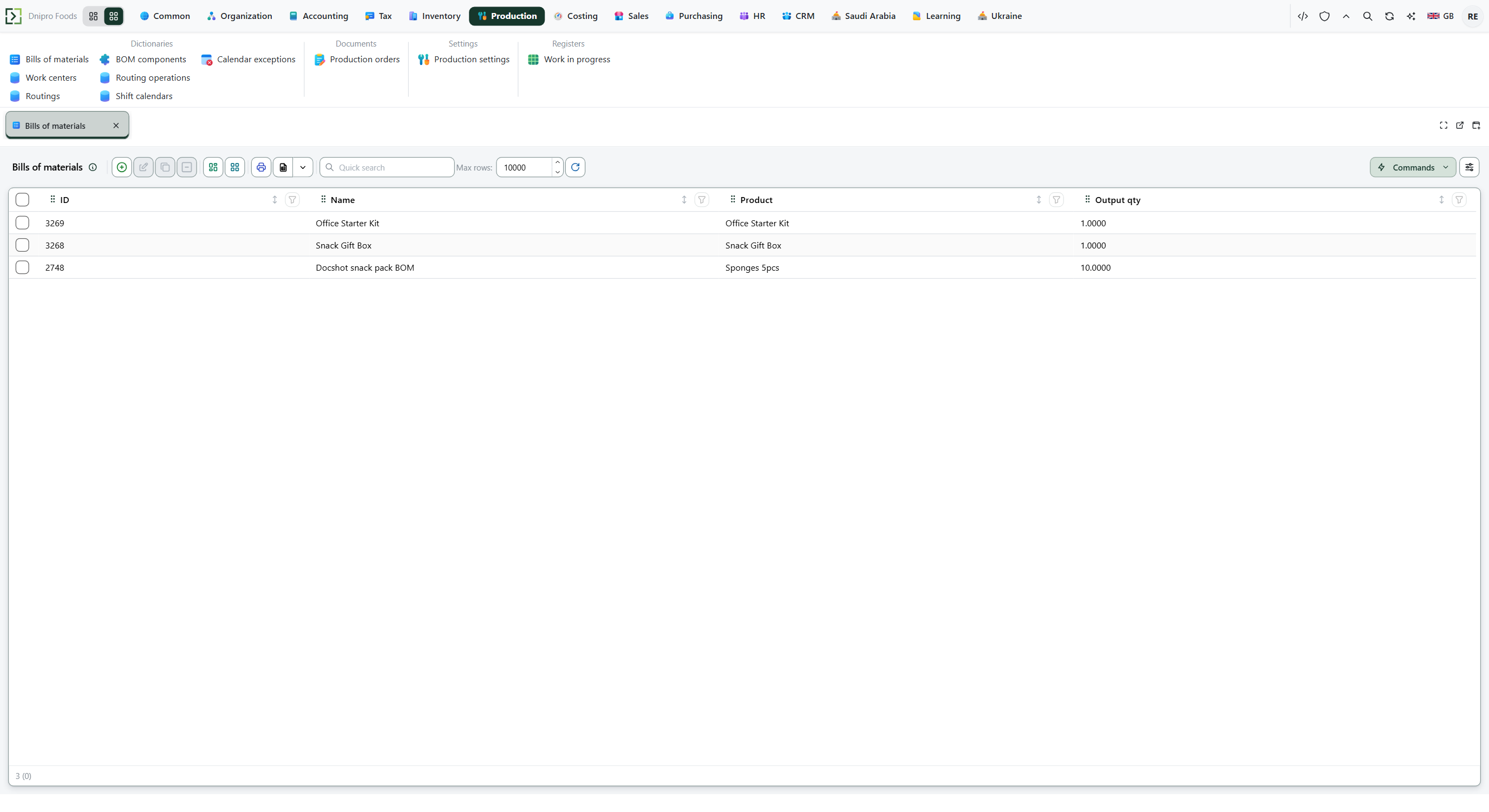 Bills of materials: Office Starter Kit and Snack Gift Box show an output qty of 1, and Dochot snack pack BOM for Sponges 5pcs shows an output qty of 10. The product is in English.
Press Expand bill of materials. Components are replaced from the bill. The card stays Draft. Stock stays as it was. The components are reserved on Location.
Then press Release to shop. The state becomes Released. The components are written off Location. The product is still absent from stock. Work in progress holds the order quantity on Location. A capacity warning can follow; the order is still Released.
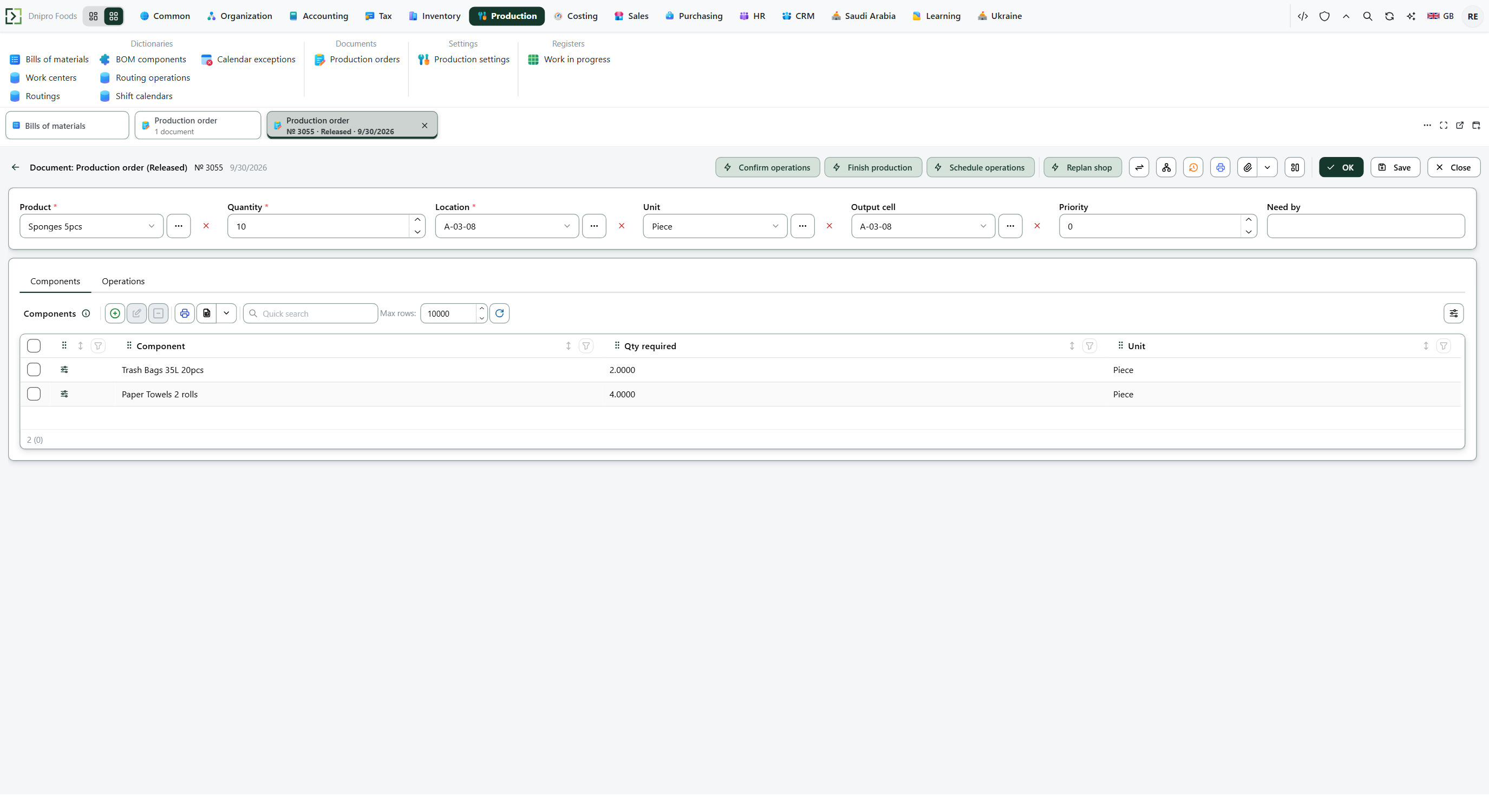 Production order 3555 is Released on 9/30/2026. Sponges 5pcs, quantity 10, location A-03-08, unit Piece, and output cell A-03-08 are filled. Components show Trash Bags 35L 20pcs at 2 and Paper Towels 2 rolls at 4. The product is in English.
The Released card also shows Confirm operations, Schedule operations, and Replan shop. They plan and confirm Operations. They do not receive the product.
Open Ribbon → Production → Registers → Work in progress. Select Item and press Build. A Released order is listed here until Finish production.
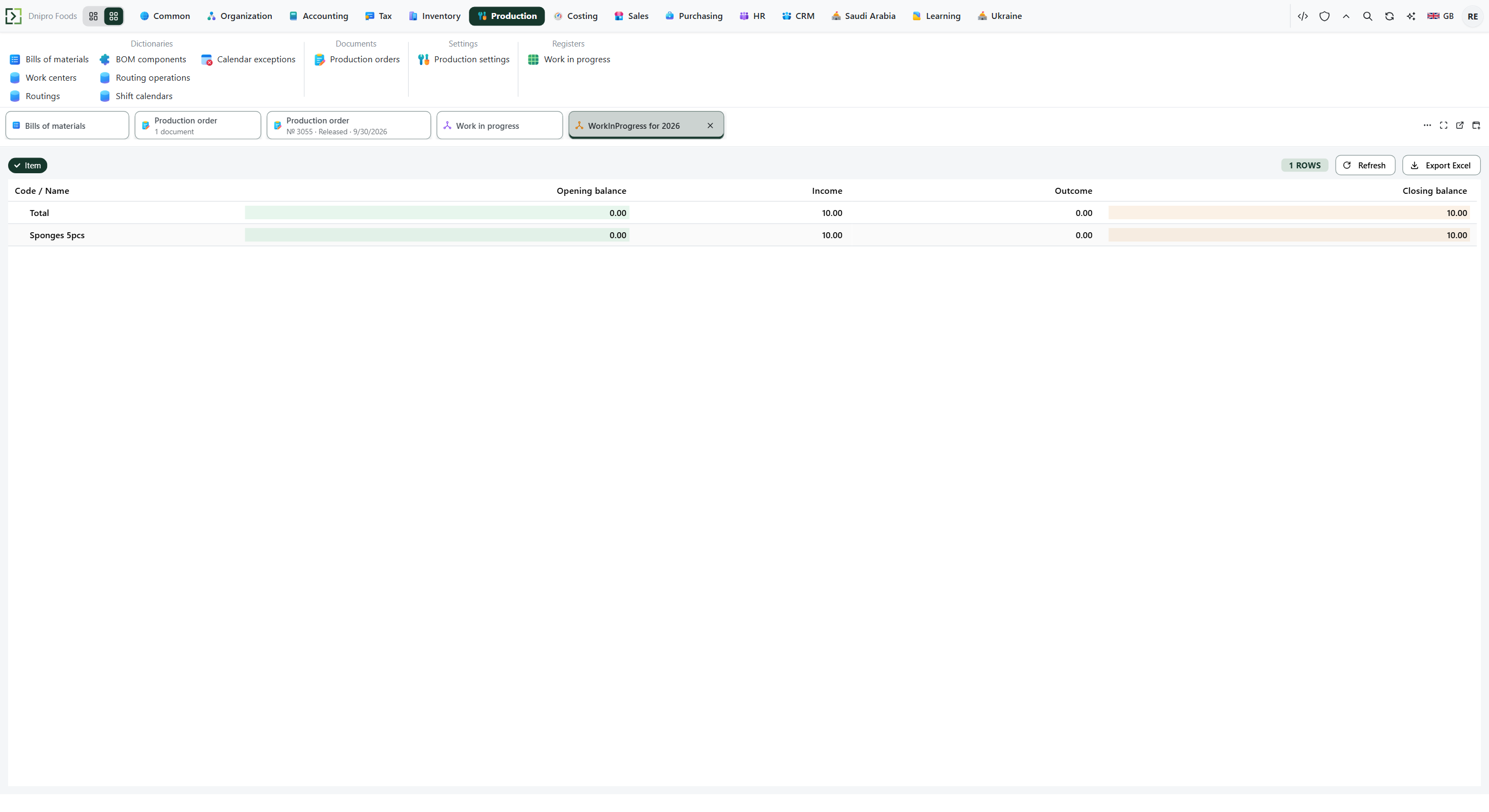 Work in progress for 2026, grouped by item: Sponges 5pcs has income 10 and a closing balance of 10. Order 3555 is still Released. The product is in English.
Then press Finish production. The state becomes Finished. The product is received in Output cell. Work in progress for that quantity is removed.
Expand bill of materials, Release to shop, and Finish production read the saved document. Save after you change Product, Quantity, Unit, Location, Output cell, or Components.
Example
The location holds 10 of a component. This order needs 4. Save on Draft reserves those 4: 10 − 4 = 6 stay free, on-hand is still 10. Release to shop writes the 4 off: on-hand becomes 6, and the product sits in work in progress. Finish production receives the product in Output cell and WIP falls to 0.
On-hand Reserved Free Product WIP Before the order 10 0 10 absent 0 Draft 10 4 6 absent 0 After Release to shop 6 0 6 absent the order After Finish production 6 0 6 in Output cell 0
Tip
Auto-expand BOM on Ribbon → Production → Settings → Production settings fills Components on the first save of an empty order. Expand bill of materials replaces the lines. Default output location is copied onto Output cell when a new order opens; when both that field and Output cell are empty, the product is received on Location. If Trade profile on Ribbon → Common → Settings → Common settings is BuySell, Save and posting are refused — set Full. An empty WIP account on Accounting → Settings → Accounting settings still moves stock and writes no work-in-progress journal line. Two bills for one Product are ambiguous: expansion uses the first bill returned. Explode puts the raw material on this order; it does not open a production order for the subassembly.
If the command refuses#
| What you see | What to do |
|---|---|
| The command says to specify the product and a quantity greater than zero | Fill Product and a Quantity above 0. The card stays Draft. |
| The command says no bill of materials was found for the product | Create a bill for that Product, then press Expand bill of materials again. |
| The command says to fill the components: press Expand bill of materials | Press Expand bill of materials, then run Release to shop or Finish production again. |
| The command says the component quantity must be greater than zero | Enter a Qty required above 0 on every component line. |
| The command says the cell is short: 4.0000 required, 2.0000 on hand | Receive or transfer the component into Location, or lower Qty required. The card stays Draft. |
| The command says the buy-sell profile has production turned off | Trade profile is BuySell. Open Ribbon → Common → Settings → Common settings and set Trade profile to Full. |
| The command says the output quantity must be greater than zero | Posting into Released or Finished refused a Quantity of 0 or below. |
| The command says to fill the components (expand the bill of materials) | Posting into Released or Finished found no component lines. |
| The command says an operation has negative actual minutes | Actual minutes on an operation is below 0. Enter 0 or a positive number, Save, then press Finish production again. |
| Stock stayed the same after Save | The order is Draft. Draft reserves the components on Location. |
| The product is absent from Output cell | The order is Released. Finish production receives it. |
| You expected customer or supplier debt to change | Use a sales or purchasing document. This document changes stock, the reserve, and work in progress. |
See also