Print a document
Updated
Preview a saved document, print it, or download a PDF. Printing does not change the document state and does not post accounting.
Note
An unsaved draft has no record to print. Save first. Print does not email the sheet, archive it, or attach it to the card.
How to#
To print a document, open the list that contains it. Example: Ribbon → Sales → Documents → Sales orders. The same printer icon sits on a Sales realizations list, and on every other saved document or dictionary list. The list shows saved records.
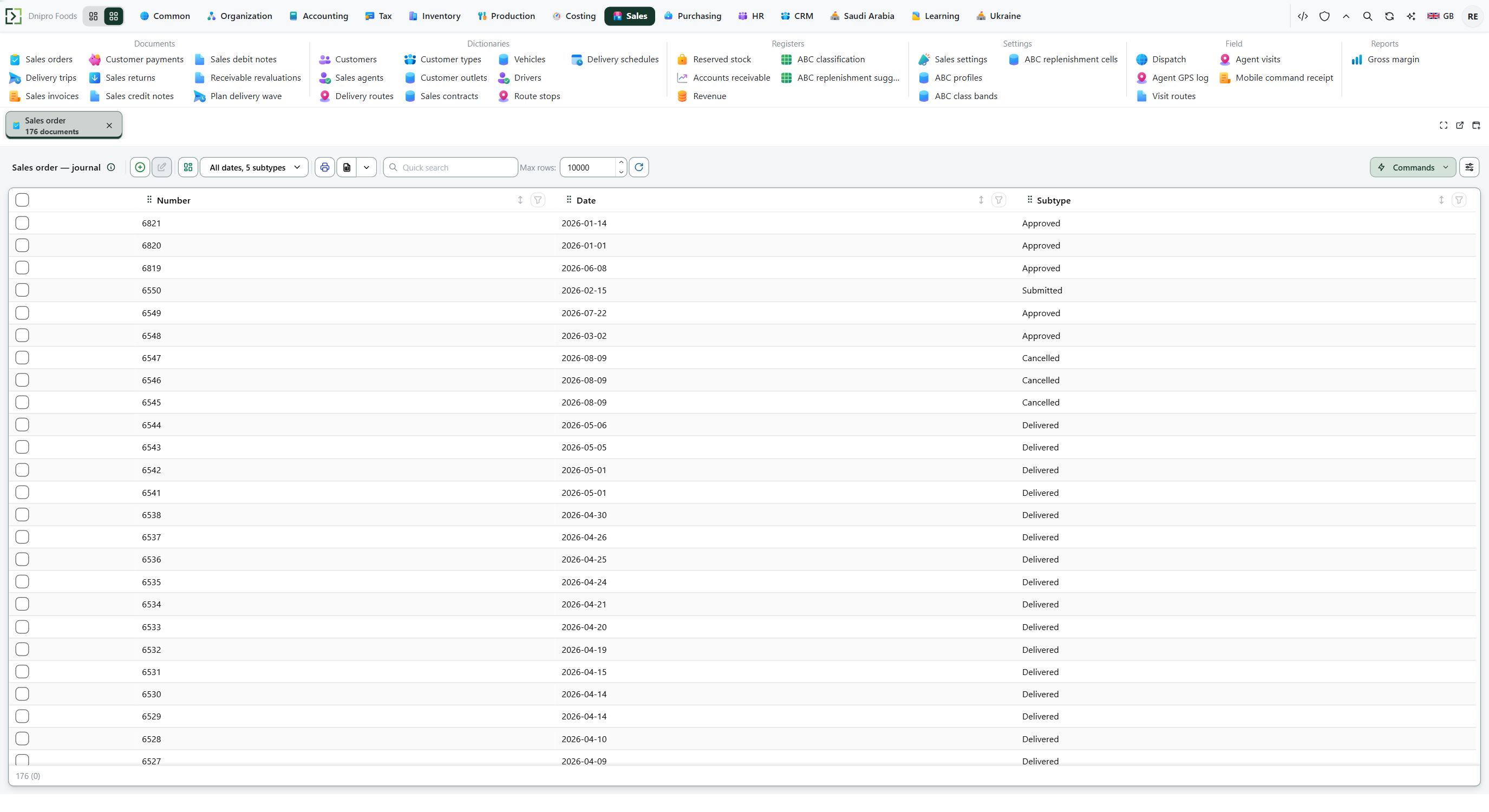 Sales order list: choose a saved document before opening the print dialog. The product is in English.
Open the document card. Press Print (the printer icon). The Print dialog opens.
Select a form by Name. The Code column shows the form code. In Printer, leave System printer to use the browser print dialog, or pick a print-agent printer if one is listed. Change Copies when you need more than one copy.
Then choose what to do:
- Preview opens the rendered sheet in the browser without opening the print dialog.
- Print on System printer opens the system print dialog. From there you can print on paper or use the browser's own Save as PDF.
- Print on a print-agent printer sends the form as PDF to that machine. Watch Administrator → Printing → Print queue.
- Save PDF downloads a PDF produced by the server.
- Cancel closes the dialog.
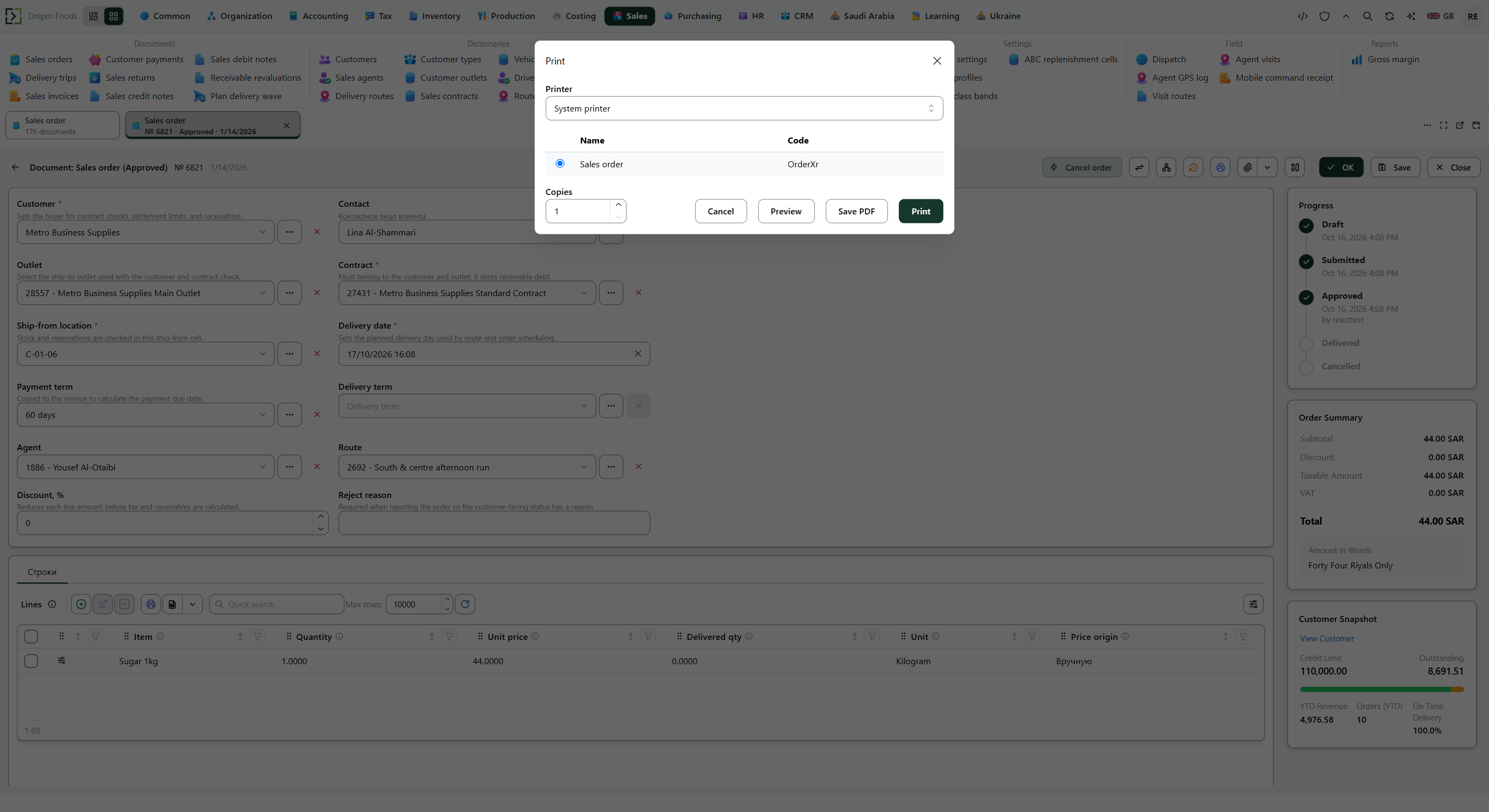 Print dialog: choose the bound form, preview it, print it, or save a server-rendered PDF. The product is in English.
The sheet carries the data the form defines. A sales order form carries the customer and item lines. An agent visit form carries the visit and linked order numbers. A tax return form carries statutory cells. Printing does not change the document, however many times you render it.
The workspace ships print forms for the usual sales, purchasing, store, finance, tax, HR, production, and CRM documents. Country packages add statutory forms.
To print several documents from a list: select the rows (leave all rows unselected to print every row currently shown). Press the printer icon, pick a form, then Preview or Print. If you set Copies, each copy contains the entire selected set. Each document starts on a new sheet.
Example
On a saved sales order:
- Name Sales order
- Printer System printer
Preview. The sheet shows the customer and the lines. The order stays as it was.
Tip
If Save PDF is off on this stand, use Print and the browser's Save as PDF. To send paper to a warehouse printer, install a print agent.
If the command refuses#
| What you see | What to do |
|---|---|
| No print forms are bound to this object. | Ask an administrator to bind a print form to this document or dictionary. |
| Save PDF is disabled | You selected Visible list, or no record form is selected. Select a real print form on a saved record, or use Print. |
| Save PDF currently supports one document at a time. Use Preview or Print for the selection. | Select one document, or use Preview or Print with System printer, then the browser's Save as PDF. |
| The managed printer queue prints one document at a time. Choose System printer to print the selection together. | Choose System printer. |
| XLSX print forms currently support one document at a time. | Select one document, or choose a form that can print the batch. |
| PDF rendering is not configured on this stand | Use Print and the browser's Save as PDF, or ask an administrator to configure PDF rendering. |
| The printed data is old | Save the document, reopen Print, and render again. |
See also
Same topic for other readers: Developer