Work with a list
Updated
Open a list, find a row, open the card, and save. That is how every dictionary and document starts.
Note
Save writes the card. It does not change a document's state and does not move stock, debt, or tax. The state is not a list you pick on the card — a button on that card changes it. Until you press the button, the document stays a draft. If the button is missing, there is no other control that posts instead.
How to#
To work with a list, open Ribbon → Inventory → Dictionaries → Items. The item list appears.
Type in Quick search, for example Milk. Matching rows remain. Double-click Milk Chocolate 90g. The card opens with Name, Item group, and Unit. Close it without saving if you changed nothing.
To narrow a column, open its filter. Choose Contains or Equals, or tick values under Values. Press Clear filter when the list looks empty even though the records exist.
Press New. Fill Name with a name that is not already in the list, Item group (Confectionery), and Unit (Piece). Press Save. A number appears in the title. Search the list for that name: the new row is there.
In a reference field, type the code or name and press Enter. One match fills at once; several matches open the picker. F4 or the down arrow also opens the picker. If the value you need is not in the picker, someone who configures the stand creates it on that other list — not from this card. Search with the English name (Milk Chocolate), not a translation.
On the card, Enter moves to the next field. In a table, it moves to the next cell; from the last cell of a line, the line is saved and a new line opens. Shift+Enter goes back. Ctrl+S saves the header. Escape closes a picker or cancels a cell edit; it does not close the card.
The magnifier on the ribbon is Search everywhere (Ctrl+K). From two characters, objects open a list and dictionary records open a card.
The ⓘ button means What this is and how it works. It opens a help drawer for the current list, card, or tab. If the drawer shows Show me on screen, click it to highlight the controls for that scenario. Some fields also show a short hint under the label. In line tables, the same short help appears as a small ⓘ next to the column title; focus or point to it before filling the column.
On a document card, command buttons sit on the toolbar and appear only when the current state allows them.
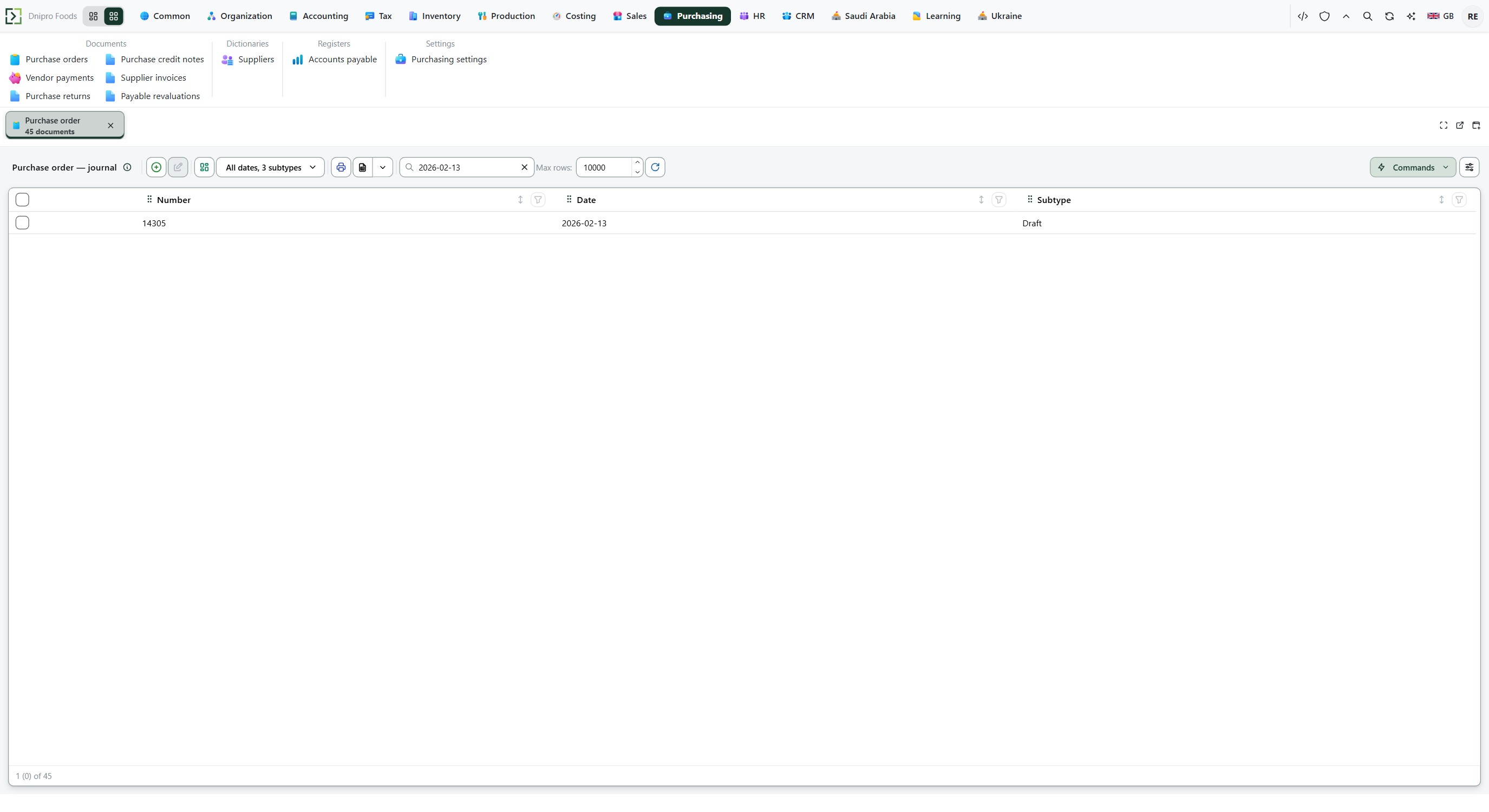 Document list: open a draft from the list before looking for command buttons on the card. The product is in English.
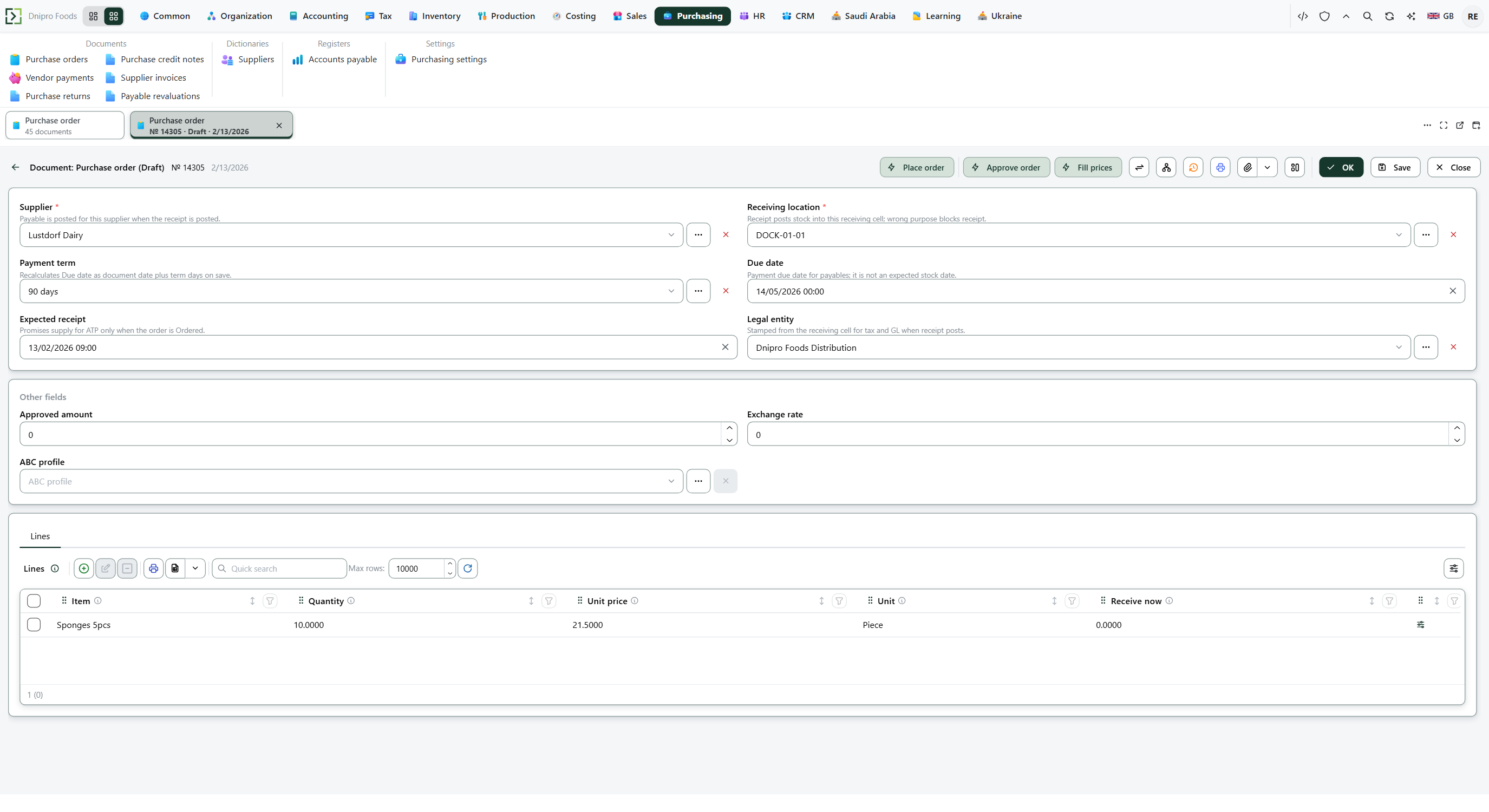 Draft card: command buttons sit on the card toolbar and are shown only when the current state allows them. The product is in English.
Open the menu under your name → Settings → General → Commands on a card. Buttons (default) shows each command as its own button. One button shows a single green Commands button that drops down the list. From the sixth command on, extras move behind …. Lists always use the dropdown, whatever you chose here. The setting is remembered in your browser, per user.
Until you press the command, the document can be edited. After it succeeds, the card reloads, the state changes, and the next allowed buttons replace the previous ones.
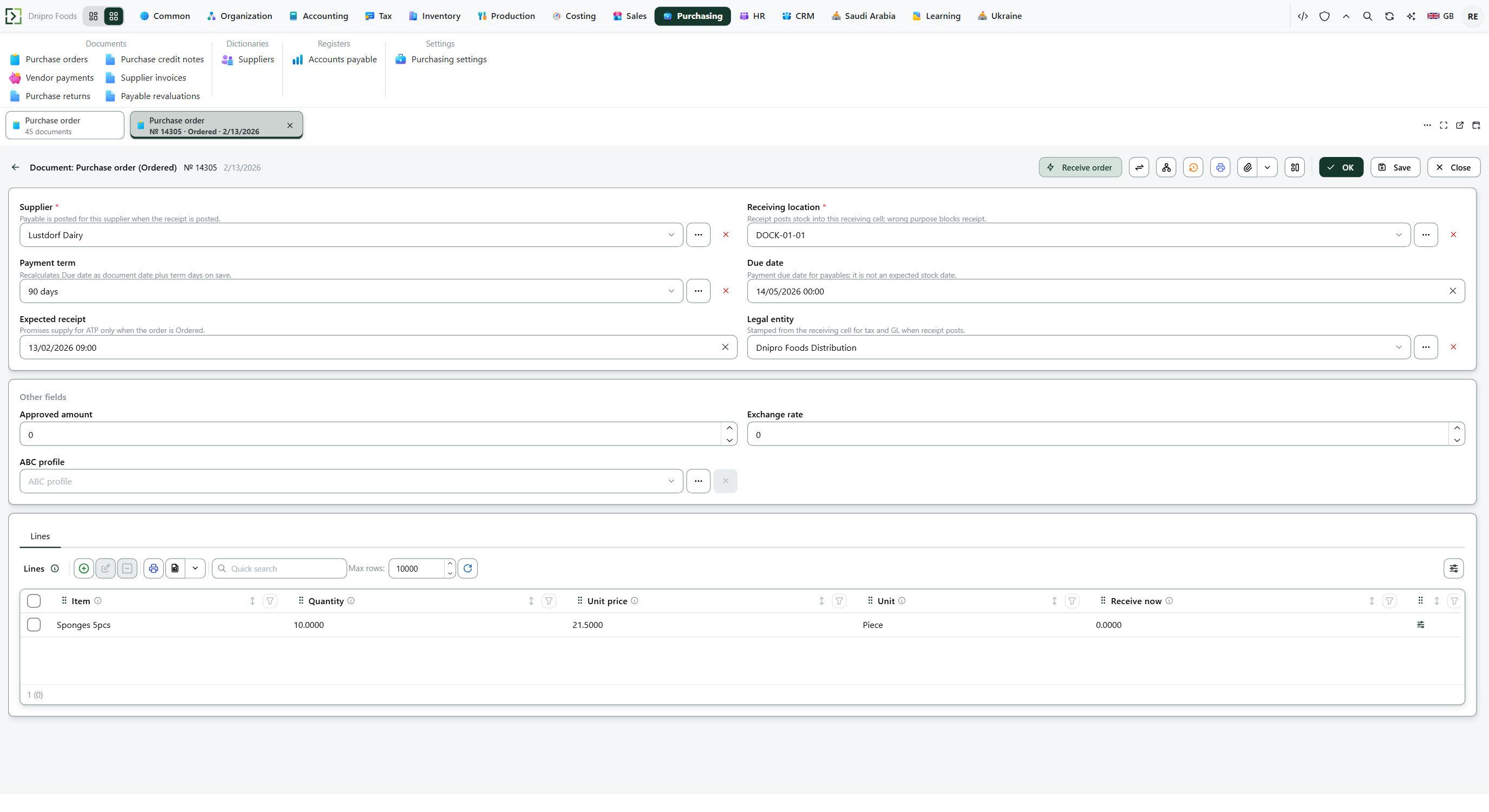 After a successful command, the state changes and the next allowed buttons replace the previous ones. The product is in English.
A confirmed document is not corrected by deleting lines. Use the opposite command, or a separate reversal document, for that process.
Example
Typing
Milkin Quick search leaves Milk Chocolate 90g. Then New:
- Name a unique name
- Item group Confectionery
- Unit Piece
Save. Search the list for that name: the new row is there.
Tip
After Save, a document is still a draft until you press its command button. The state on the card does not move it. Example: Approve an order.
If the command refuses#
| What you see | What to do |
|---|---|
| No records | Clear Quick search. On the column, press Clear filter. |
| The picker has no row for the value you need | Open that other list and create the record there, then return. |
| A document is saved but stock, debt, or tax did not move | Press the command button on the card. Save alone does not post. |
| The command button is not on the card | Your role does not have that command, or the document is not in a state that binds it. Saving again will not show it. There is no state list to pick instead. |
| I see one Commands button instead of separate buttons | Switch Settings → General → Commands on a card to Buttons. |
| A command I expect is missing from the button row | The card has more than five commands. Press … at the end of the row. |
| The destination cell is not accepted | Storage receives from a receiving cell: DOCK-01-01 → A-01-01, not the other way around. |
See also