Add a widget
Updated
Add, move, or remove tiles on your dashboard. Tiles that already sit on a document or dictionary card are placed for you; you do not add those from the card.
Note
Add widget is a dashboard button. Attachments, notes, progress, and order totals on a record card are not fields and are not moved by the form layout. An implementer places those tiles.
How to#
To add a dashboard tile, press Dashboard, then Customize. Add widget and Restore defaults appear, and every tile grows a grip on the left of its title, a gear, and a red bin on the right.
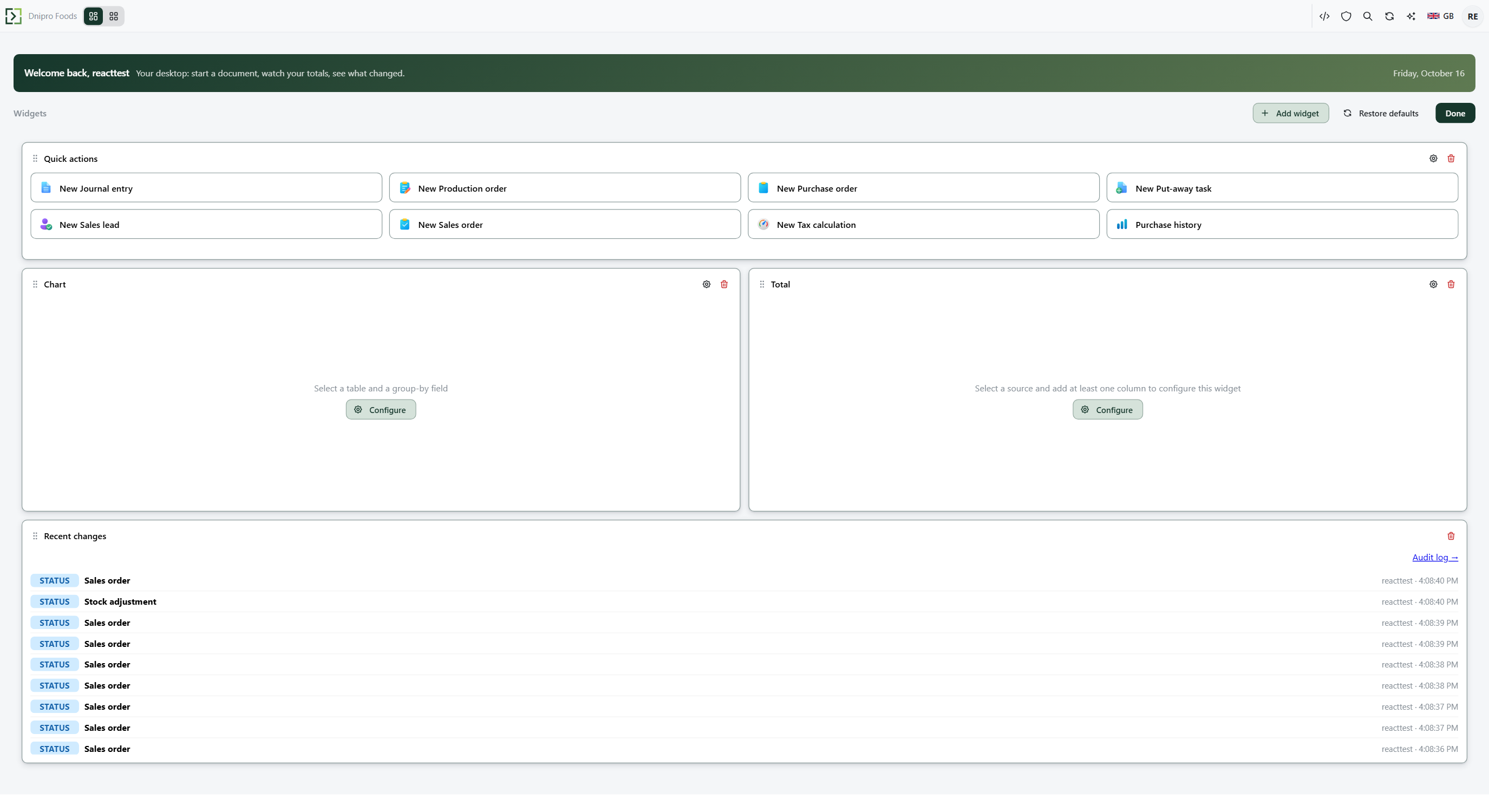 Customize mode: every tile grows a drag handle, a gear and a bin, and the bar offers Add widget and Restore defaults. The product is in English.
Press Add widget and click a card in the list. The tile is added at the bottom. Drag a tile by its title row to move it, and drag its bottom-right corner to resize it. The other tiles step aside. There is no Save button: the arrangement is stored as you release the mouse and is still there after a reload.
Press the gear on Quick actions. The Widget settings window opens. Press Add and pick what a new tile opens — the list is grouped into From the menu, New document, and New record. Each tile you add appears as a row with a text box (type your own wording), arrows to reorder, and a bin to remove it. Tiles per row sets how many fit in a row.
While your own list is empty, the window says which tiles are shown by default. As soon as you add one of your own, those default tiles disappear and the row shows exactly what you listed.
For a screen that is not in the menu, type its address into Page or link and press Add. An address that starts with / opens inside the application as a tab; anything else opens in a new browser tab.
To take a tile away, use the red bin on its title row. Press Done. The grips, gears, and bins disappear.
To go back to the standard set, press Customize → Restore defaults and confirm. Quick actions, a chart, a total, and recent changes come back. Your current arrangement is not kept.
Example
- Add widget Sales agents desk
Drag it under Quick actions, then Done. Reloading the browser keeps that layout.
Tip
Restore defaults warns: The default widgets replace what is on this desktop now. Your current layout is not kept. That is also the way back if you removed every tile.
If the command refuses#
| What you see | What to do |
|---|---|
| Tiles do not move when you drag them | Customize is off. Press Customize. |
| No widgets yet — click "Add widget" to get started | Press Add widget, or Restore defaults. |
| No widgets configured | Customize → Restore defaults. |
| Save the record first to manage attachments. | Save the card, then use the Attachments tile. |
| Save the document first. | Save the card before Order Summary can total the lines. |
| A tile you had configured is gone | The object it opened no longer exists. Add the tile again through the gear. |
See also
Same topic for other readers: Developer