Fill item characteristics
Updated
Set up characteristics and a template once, then fill an item's values on its card. Key values become part of the name. Copy with other values opens the next size or colour.
Note
Characteristics describe an item. They do not split its stock. Sugar, White, 1 kg and Sugar, White, 2 kg are two items, each with its own stock and prices.
How to#
To fill characteristics, open Ribbon → Inventory → Dictionaries → Characteristics. Press New. Fill Name and Value type. The card then shows only what that type needs (Unit, Decimal places, Reference dictionary). Save. For Option, open the Options tab of the saved card and add the options; a Colour such as #F5F5F0 shows as a swatch.
Open Ribbon → Inventory → Dictionaries → Characteristic templates. Press New, for example Grocery. To extend an existing template, pick it in Based on: its lines come first. Save. In Characteristics of the template, press + Add characteristic for each line, pick the characteristic, fill Section, tick Key for the values that tell one SKU from another and Required, and choose Filled: on the item or on the order line. Order the lines with ↑ ↓ and press Save lines.
Give the template to an item group. Open Ribbon → Inventory → Dictionaries → Item groups, build the tree (a group's Parent is another group), and fill Template for its items on the top group of a branch. Its subgroups inherit it unless they have a template of their own.
Open Ribbon → Inventory → Items. Open an item. Check its Item group and, for SKU names, fill Base name (the name without the key values, for example Sugar). Save. The Characteristics tab appears on the right and says where the template came from: Own template of this record, or Template from the item group.
Fill the values and press OK on the item card. The card stores the characteristics with the item and closes. Save on the card stores them and stays open. The Save button on the characteristics tab stores only the characteristics and shows Characteristics saved. As on a shop page lists each characteristic on its own row. When every key value is filled, the item's name becomes Sugar, White, 1 kg.
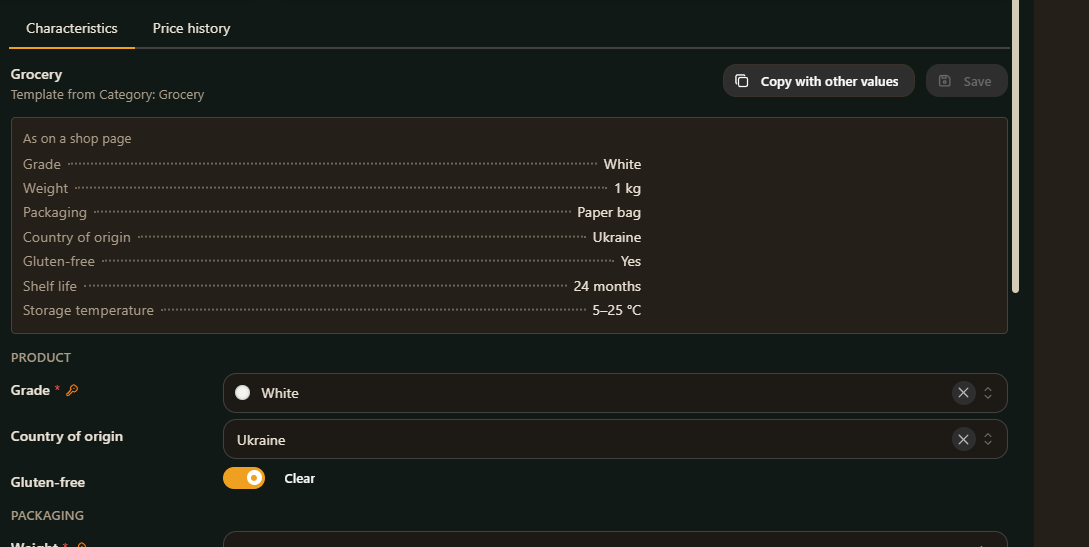 Characteristics tab: sections from the template, key characteristics marked with a key, required ones with a red star, and the preview as on a shop page.
To add the next size, press Copy with other values. A new item opens with the same fields and non-key values. Fill the key values (Weight = 2) and press Save: the new item is Sugar, White, 2 kg.
To see characteristics in the item list, press View settings (the sliders button at the right of the list toolbar), then Column setup. In Computed, expand Characteristic and tick the characteristics, then press Save & close. The list gets a column per choice, for example Characteristic: Grade. Text values look as they do on the shop page; numbers show without their unit. You can sort and filter by it over the loaded rows.
 Item list with characteristic columns: text values as on the shop page, numbers without their unit.
For a value asked on the order line, open the document, save the line, and press the sliders icon at the start of the line (Line parameters). Fill the value and press Save: it belongs to this line only. When the order is approved, the invoice line made from it gets the same parameters.
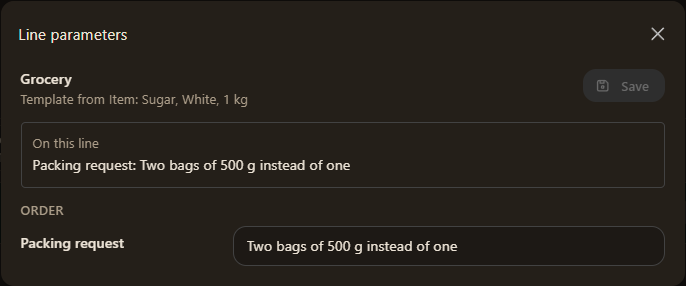 Line parameters: the template comes from the line's item, and only characteristics filled on the order line are asked.
Example
- Template Grocery
- Base name Sugar
- Grade White
- Weight 1 kg
Save. The item name becomes Sugar, White, 1 kg. Press Copy with other values, set Weight to 2, Save again: Sugar, White, 2 kg. On sales order 2757, open Line parameters on line Sugar, White, 1 kg and fill a note for that line only; the item card does not change.
Tip
Required warns; it does not block the save. A missing value is marked and listed as Missing. Lines without a section go under General. A value that no longer belongs to the template stays under Outside the template until you remove it with the bin icon.
If the command refuses#
| What you see | What to do |
|---|---|
| No Characteristics tab on the card | Save the item first. |
| No template on the tab | Fill Template for its items on the item's group or a group above it, or Characteristic template on the item. |
| The command says another item already has the same base name and the same key values | Open that item instead, or change a key value. |
| The command says the value must be a whole number | Type a whole number. |
| The command says the range from is greater than to | Swap the numbers. |
| The command says the option does not belong to that characteristic | Pick one of the listed options. |
| The name did not change after saving | Fill Base name and every key value (marked with a key). |
| A value moved to Outside the template | The item now has another template. Keep it, or remove it with the bin icon. |
See also