Open a stand
Updated
Sign in to the stand address you were given. If the stand is still empty, one page loads the country, the currency, and the legal entity.
Note
A stand works empty. The orange banner on the dashboard keeps the invitation open until someone with the Administrator role opens Tenant setup.
How to#
To open a stand, enter the stand address in a browser. Fill Username and Password, then press Sign in. You do not need to enter the password again until you sign out.
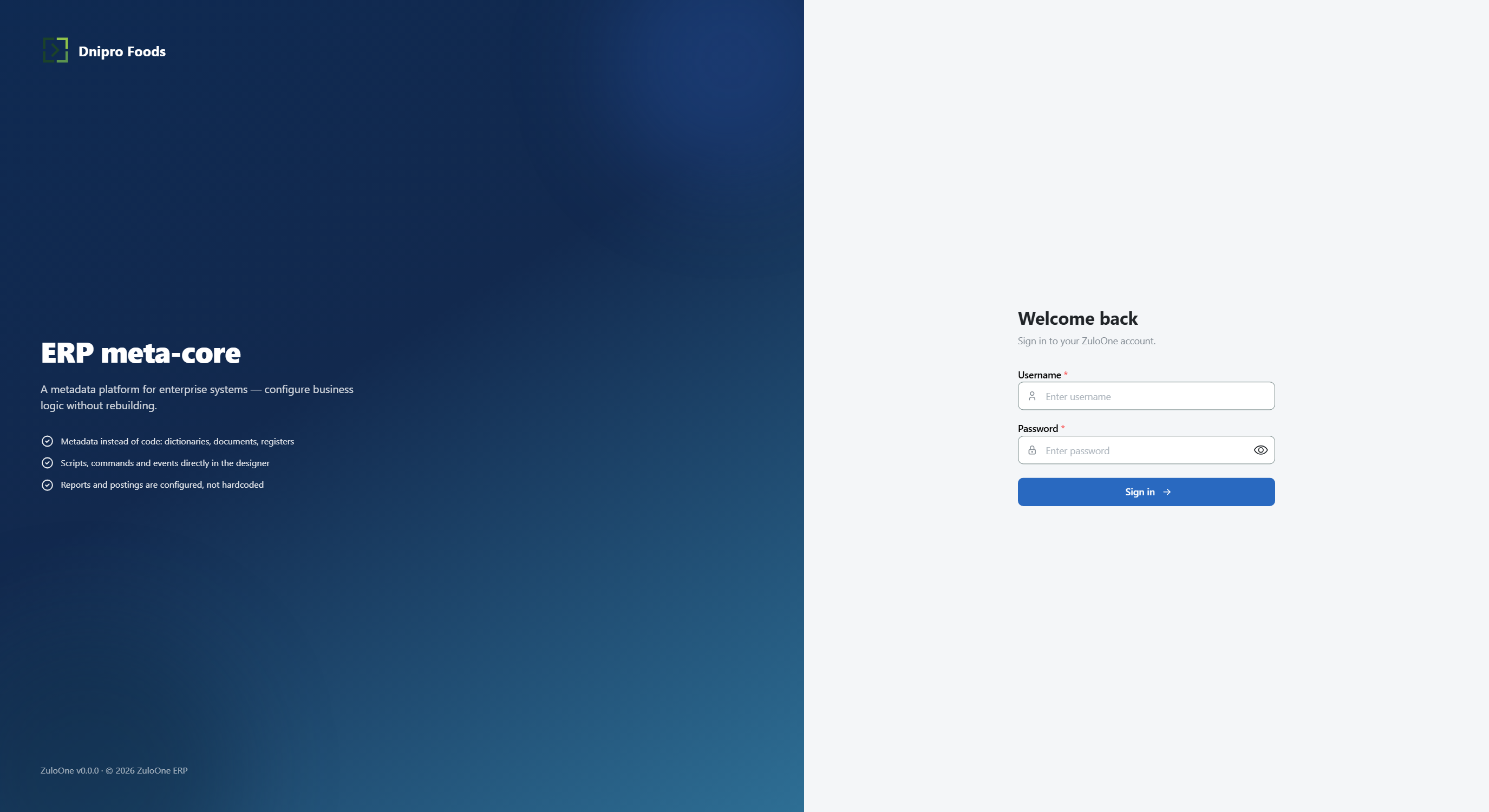 Sign-in screen: enter the stand user name and password, then choose Sign in. The product is in English.
The ribbon is visible at the top, and an empty workspace is in the centre. Which tabs you see depends on permissions. Workspace holds open lists and cards, each on its own tab. The bottom bar names the stand that is currently open.
Assistant is a ribbon button. It opens the chat on the right; the workspace shrinks and is not covered. Chats stay on the server: history, a new chat, and deletion.
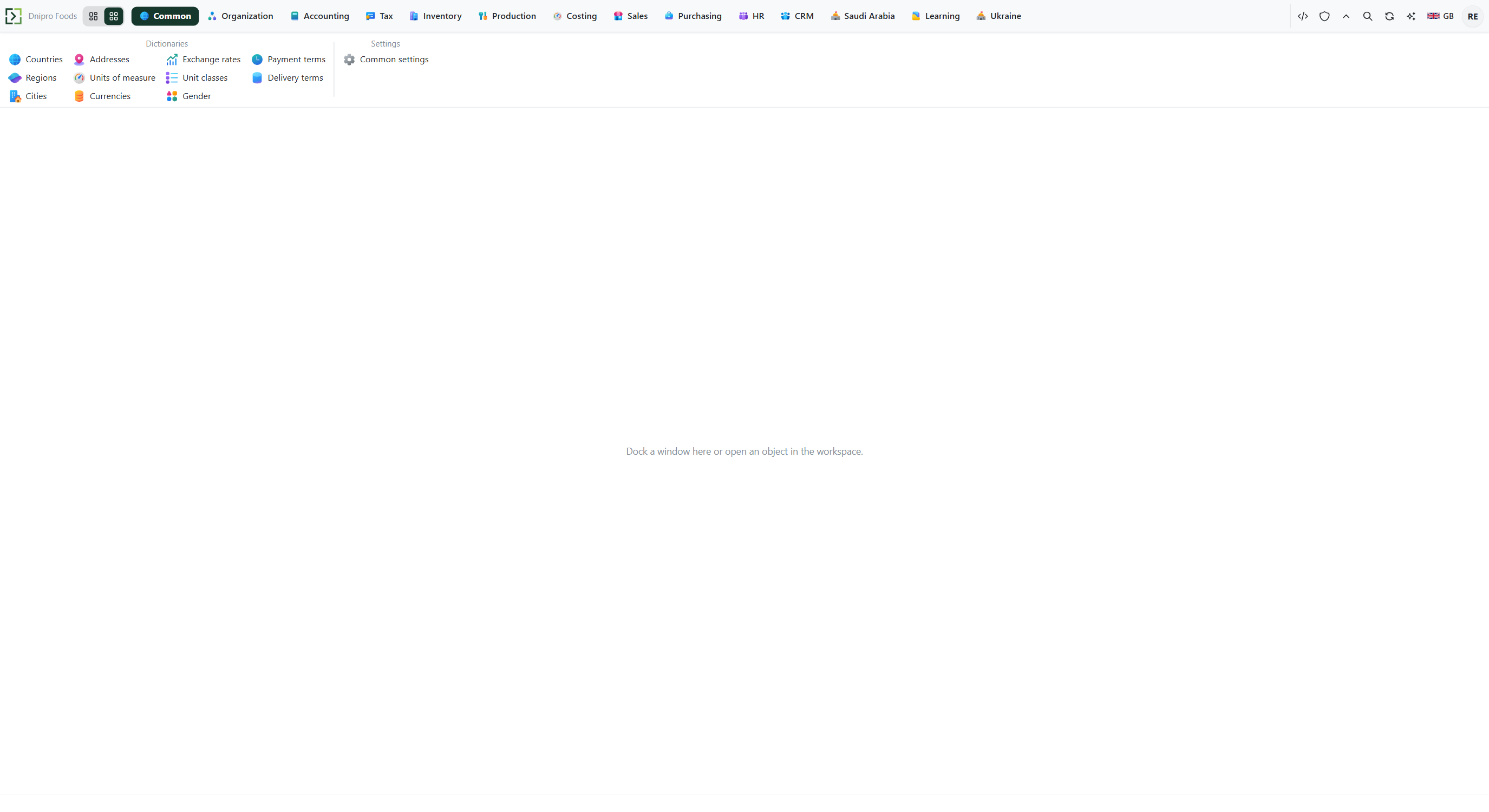 Empty workspace: ribbon tabs are available at the top, and the central area has no open tabs yet. The product is in English.
The same user signs in on the phone from the cabinet — Install the phone app.
If catalogs are empty, a banner offers Open tenant setup. Open Ribbon → Administrator → Server → Tenant setup. One card appears with a country, a name, and a number.
If Country is greyed out and says Load catalogs first, press Load catalogs. Countries, currencies, units of measure, payment and delivery terms, genders, division types, cell types, price types, the tax directions, and the base VAT set arrive together. The button finishes with Catalogs loaded and the country list fills in.
Select the country the company is registered in. Under the field the stand tells you which currency it took, for example Currency: SAR. That currency is the one the books are kept in. The currency follows the country, not a rate table.
Enter Legal entity name and Registration number exactly as they appear on the papers. Both are written into every printed document afterwards.
Press Set the stand up. The button reports Applying the country…, then Creating the legal entity…, and finishes with Organization is ready. Three things exist now that did not before: the country's own packages (its cities and its tax set), the stand's default country and currency, and the legal entity with a division and a store under it. The card is replaced by a green The stand is set up panel with the counts, for example In the database: 248 countries, 155 currencies.
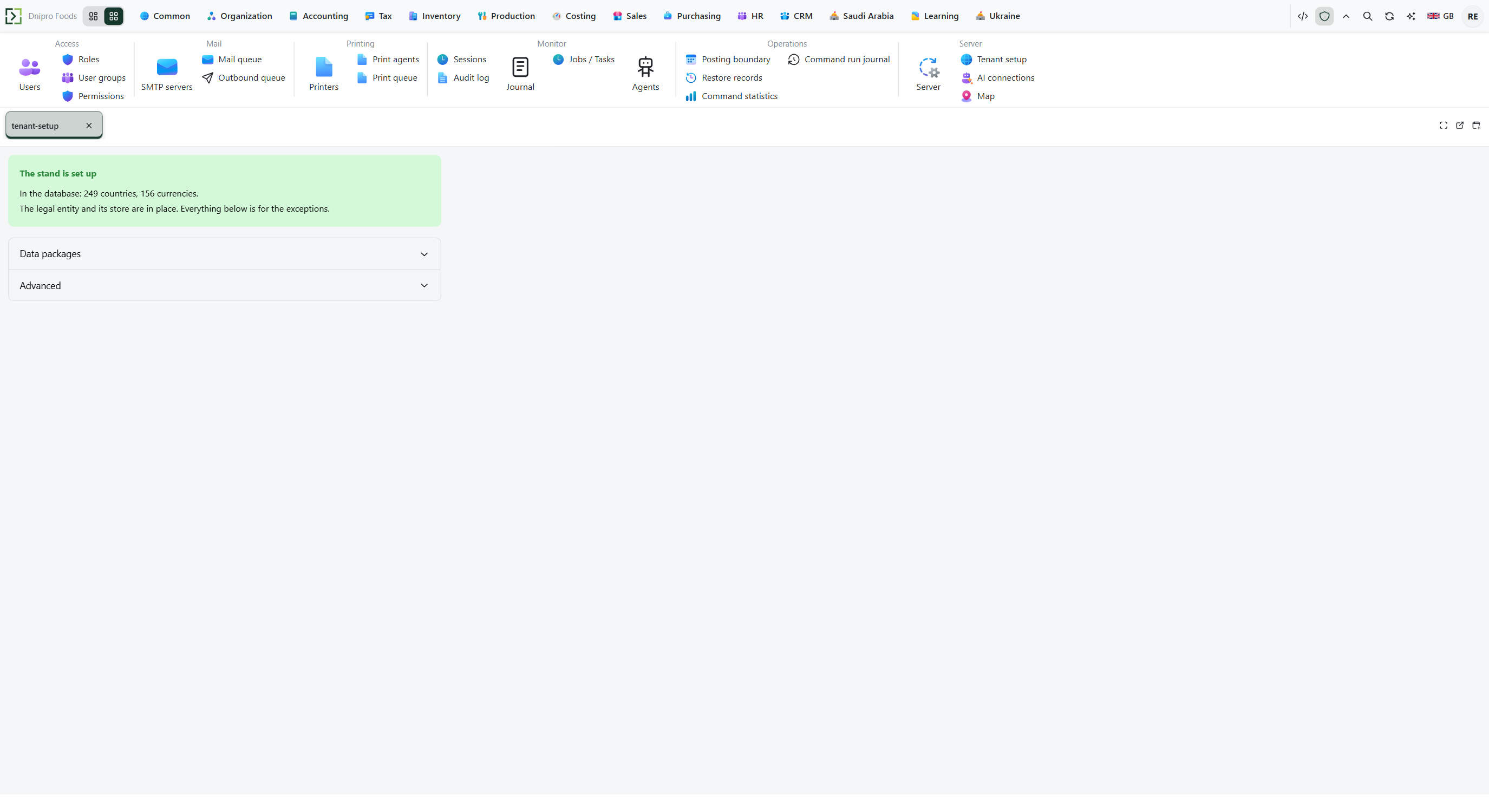 Tenant setup on a stand that already has its company: the counts, and Data packages and Advanced folded below. The product is in English.
That panel is how the page looks for the rest of the stand's life. The page does not edit an existing legal entity; correct a wrong name or number on the company's own card. A second company, warehouse, or division is made on its own card.
Two folded sections sit under the card and stay there after setup.
Data packages lists what a tenant can be filled with. Base catalogs is one row for the packs every tenant needs. On a tenant that already has them the button reads Top up: re-applying is safe and brings in whatever a newer release added. There is no Recreate on that row — it would delete the countries and currencies the whole database points at.
The demo company is a separate row. Applying it takes a while and finishes by itself: it writes settings a package cannot carry, gives every item its characteristic values and its photo, and posts the opening stock. The year of trade keeps posting in the background for a few minutes after the button comes back — reload the document list to watch it fill. The row says Applied as soon as the data is in; it does not wait for the last invoice. Apply the demo only on a demo stand: it fills accounting settings, the chart of accounts, and the fiscal calendar, which clash with books already in use.
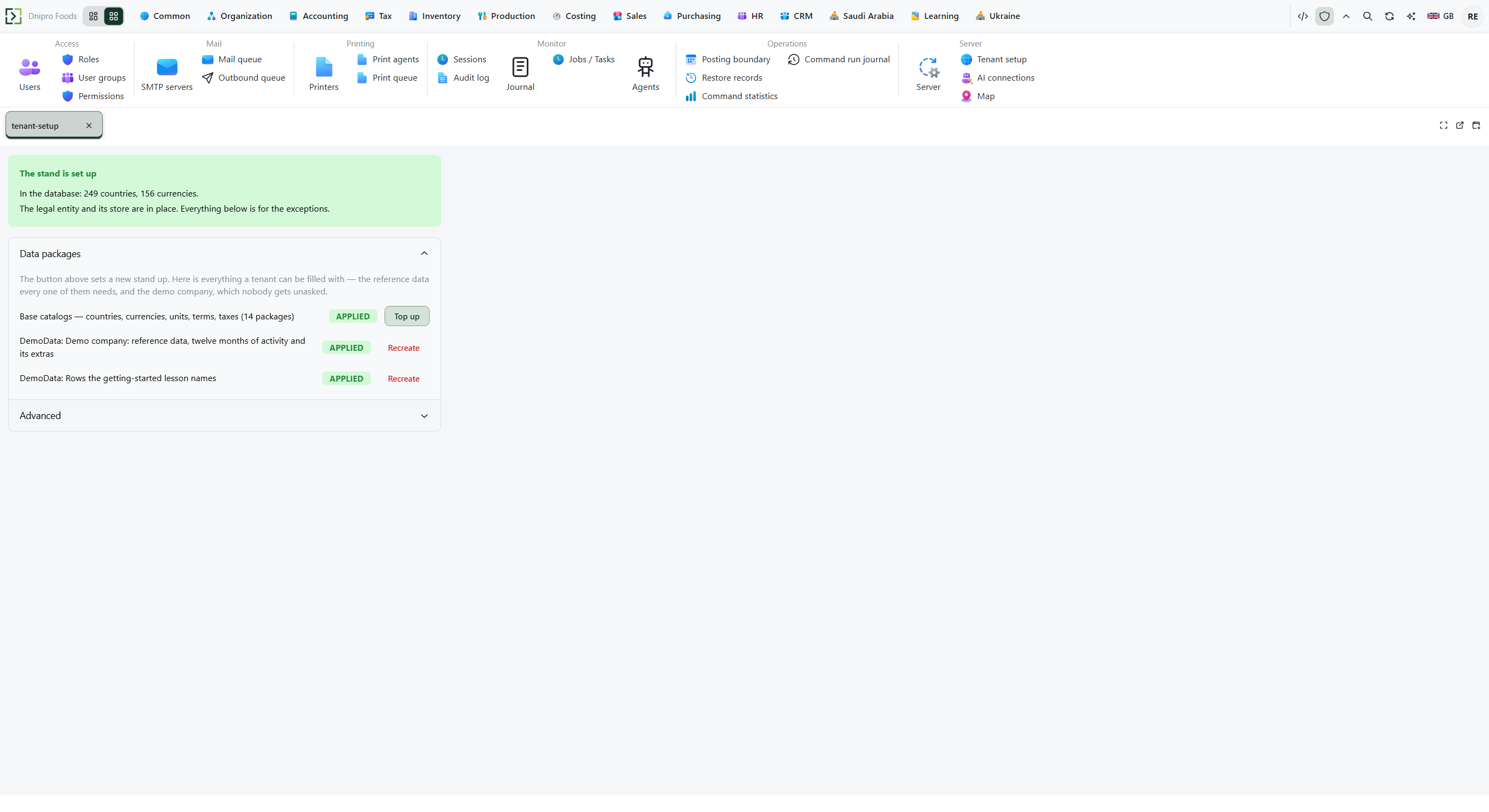 Data packages: the reference data every tenant needs behind one row, the demo company behind another. The product is in English.
Advanced holds the currency override. Change it only when the legal entity keeps its books in a different currency than the country.
Recreate next to an applied package is destructive and asks before it acts: it deletes every record in that package's tables, resets their number series, and loads the seed again. Documents and dictionaries pointing at those records break or block the delete. There is no undo.
Example
- Country Saudi Arabia
- Legal entity name as on the papers
- Registration number as on the papers
The stand fills Currency: SAR. Set the stand up ends with Organization is ready and the green The stand is set up panel. Lists such as Items then have countries, currencies, and units to pick.
Tip
After a few wrong passwords, a Cloudflare check may appear under Password. Wait for Success!, or tick the box if it asks, then Sign in again. Try again in 0:30 means wait for the countdown.
If the command refuses#
| What you see | What to do |
|---|---|
| Invalid username or password | Check the stand address, user name, and password with the person who created the stand. |
| Try again in 0:30 | Too many wrong passwords. Wait for the countdown, then enter the correct password. |
| The check could not load. Check the connection or an ad blocker and reload the page. | Check the connection or turn off the ad blocker for this site, then reload. |
| Packages unavailable | Seed files are not on this server. Ask whoever installed the stand to restore them, then come back. |
| Choose a country | The catalogs have landed. Pick the country and press Set the stand up again. |
| Name and registration number are required | Fill both Legal entity name and Registration number. |
| The country list is empty after Load catalogs | Open Advanced and read Last report: the line per package ends with err and a count. |
| A refusal naming the missing catalogs after Apply on the demo company | Set the stand up first (the card above), then apply the demo. |
| The green panel is there but the company is wrong | Correct the legal entity on its own card. This page never edits an existing one. |
See also