Read the dashboard
Updated
After sign-in, the dashboard is the first screen: one-click actions on top, and tiles with a chart, a total, and the latest changes below.
Note
The arrangement is yours. It is stored on the server, so it follows you to another computer. Nobody else's dashboard changes when you move a tile. Quick-action tiles are taken from your menu, so a user whose menu holds no documents gets none.
How to#
To open the dashboard, press Dashboard in the top-left of the ribbon (the left of the two square buttons). The greeting line and the tiles appear. Workspace (the right button) takes you back to the tabs you have open.
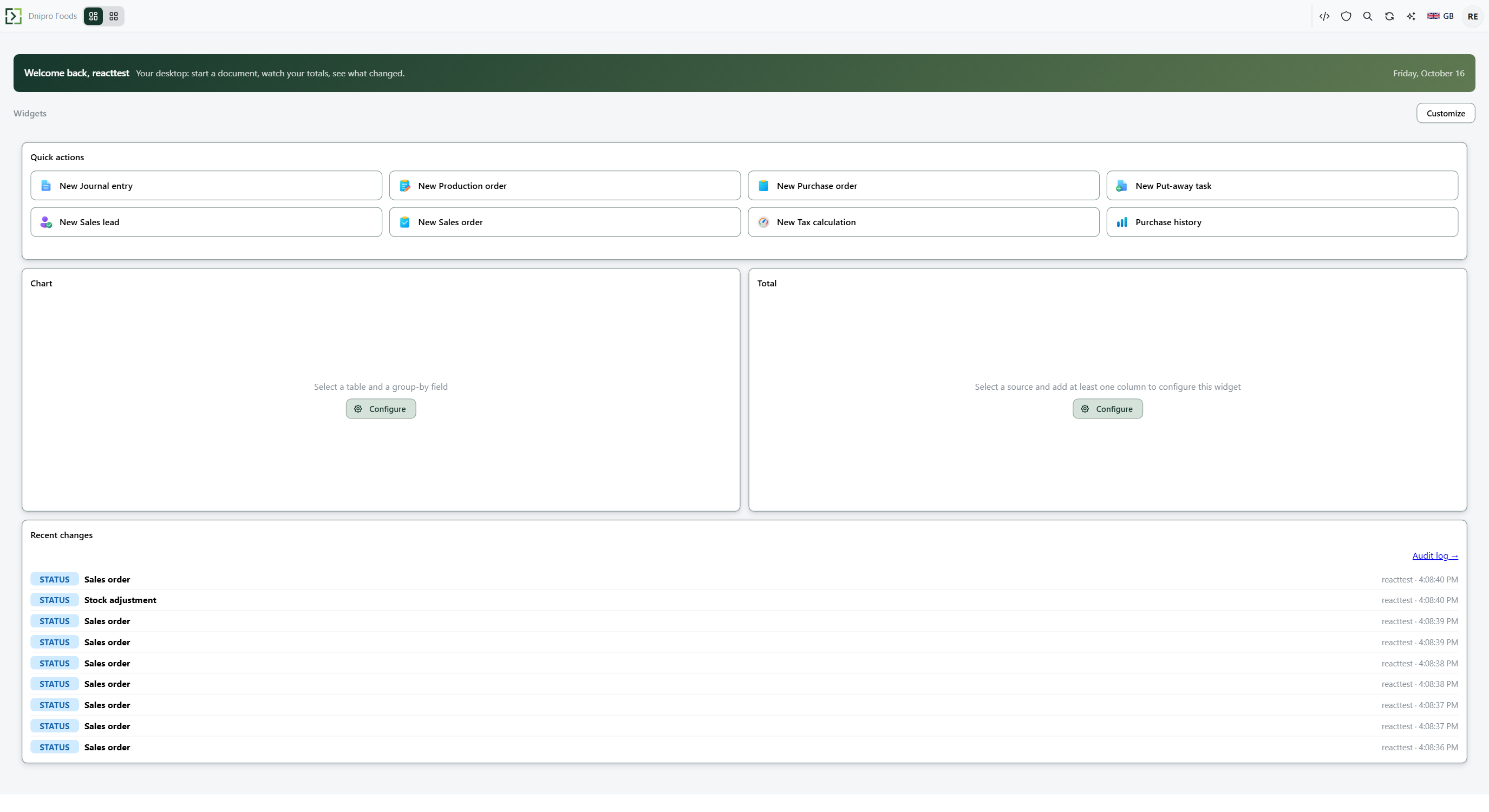 The dashboard with the greeting strip, the quick-action tiles taken from the menu, and a chart, a total and recent changes below them. The product is in English.
The strip at the top is a greeting and today's date — nothing to click. Under it, the Widgets line carries Customize.
In Quick actions, press a tile, for example New Sales order. A blank sales order card opens in the workspace. Nothing is written yet — the row appears in the list only after Save. A tile that names a report or a list opens that screen instead of a blank card. A quick action runs a command only when that command is already a menu item.
Chart and Total tiles arrive without a source: they say what they need and offer Configure in the middle of the tile. Press it, pick a table and a field to group by (for the chart) or a total and a column (for the total). Configure inside a tile works whether or not Customize is on.
For Total, a Variable set… box appears once a source is chosen. Pick a saved layout to copy its columns into the tile. Tick all available sets to choose from every saved layout, not only this source's own. Only the columns are taken: the period, the display mode, and the grouping stay as you set them. A line under the box says what happened — in orange if the set names a column this source does not have, so you can take that row out before closing.
To put a picture on the greeting strip, open the menu under your name → Settings, then Dashboard picture to upload one and Welcome line to replace the sentence next to the greeting. The strip is a wide, low band, so a wide picture crops best. Fill, Fit whole, Horizontal, and Vertical decide which part of a wide picture shows.
Example
- Quick actions New Sales order
Fill the card, Save. The order is then in Ribbon → Sales → Documents → Sales orders. Leaving the card blank writes nothing.
Tip
To add, move, or remove tiles, press Customize — Add a widget. There is no Save button on the dashboard: the layout is stored as you release the mouse.
If the command refuses#
| What you see | What to do |
|---|---|
| No quick actions yet. | Your menu holds no documents, or every tile you listed points at something that has been deleted. Press Configure in the tile and add a target. |
| No widgets configured | Every tile was removed. Customize → Restore defaults. |
| Select a table and a group-by field | The Chart tile has no source yet. Press Configure inside the tile. |
| Select a source and add at least one column to configure this widget | The Total tile has no source yet. Press Configure inside the tile. |
| A blank card opened, but no row appears in the list | Fill the card and press Save. |
| A tile you had configured is gone | The object it opened no longer exists. Add the tile again through the gear. |
| Tiles do not move when you drag them | Customize is off. Press Customize. |
See also