Issue a realization
Updated
Use a sales realization when an approved order is ready to leave stock, or for a direct sale. Release realization writes stock, revenue, debt, and tax. The state on screen is Released.
Note
Released is the only state that writes debt, revenue, and tax. There is no mark-paid button on this card. Payment is a separate document — Receive a payment. Nothing is owed while the realization is Reserved, Picking, Packing, or Shipped.
How to#
To issue a realization, open Ribbon → Sales → Documents → Sales realizations.
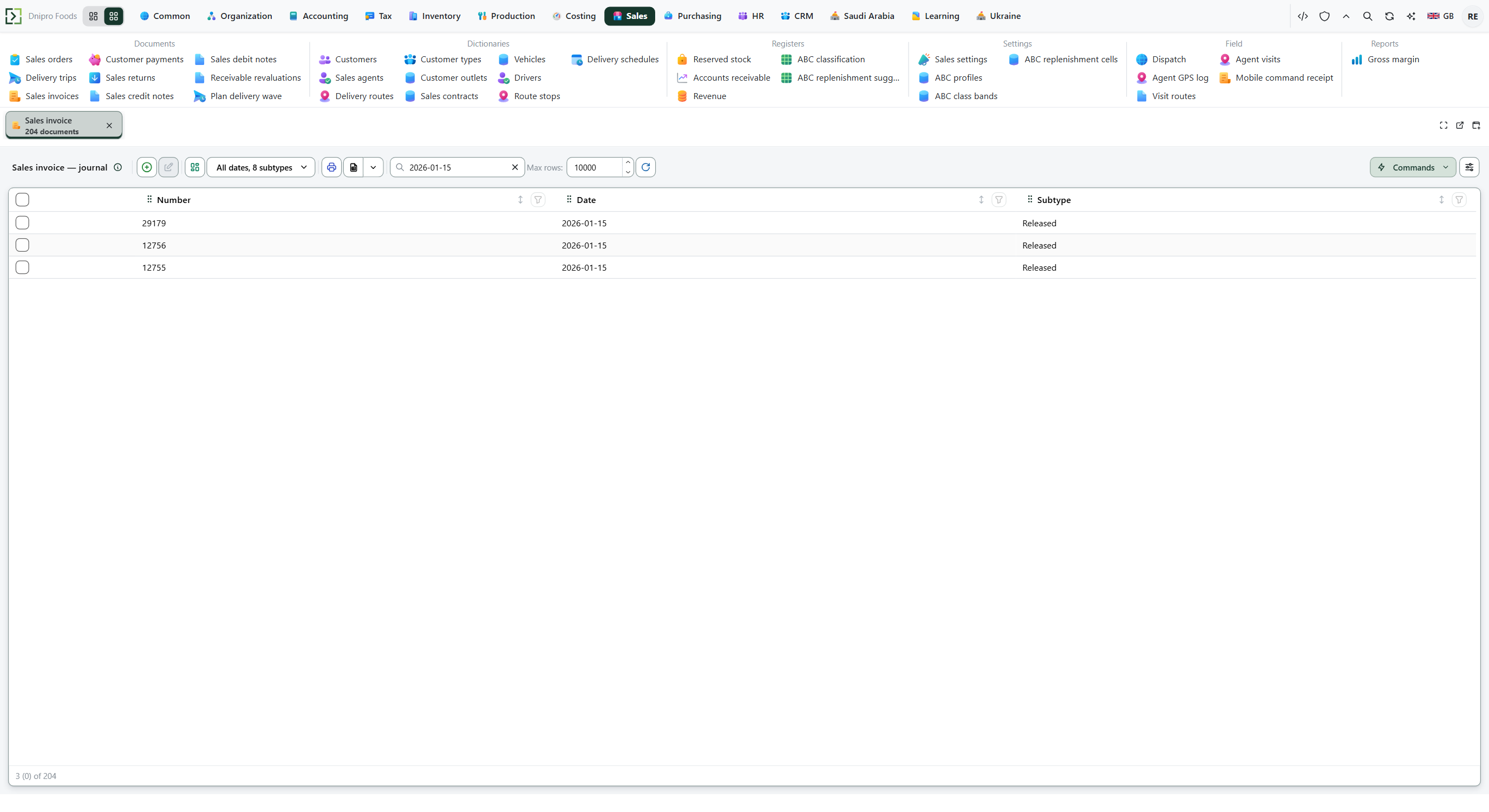 Sales realization list: reserved realizations wait for picking and release; released realizations are locked. The product is in English.
Open the realization. Check Customer, Contract, Ship-from location, Payment term, Due date, and the lines. An approved sales order already created this realization in Reserved. A direct sale can start as a draft.
A realization that came from an order moves through the warehouse when the process uses those states: Start picking, Mark packed, Mark shipped. Each command changes the state. The reservation stays.
From Shipped, press Release realization. A direct draft uses Issue realization instead. The state becomes Released. The card is read-only after that.
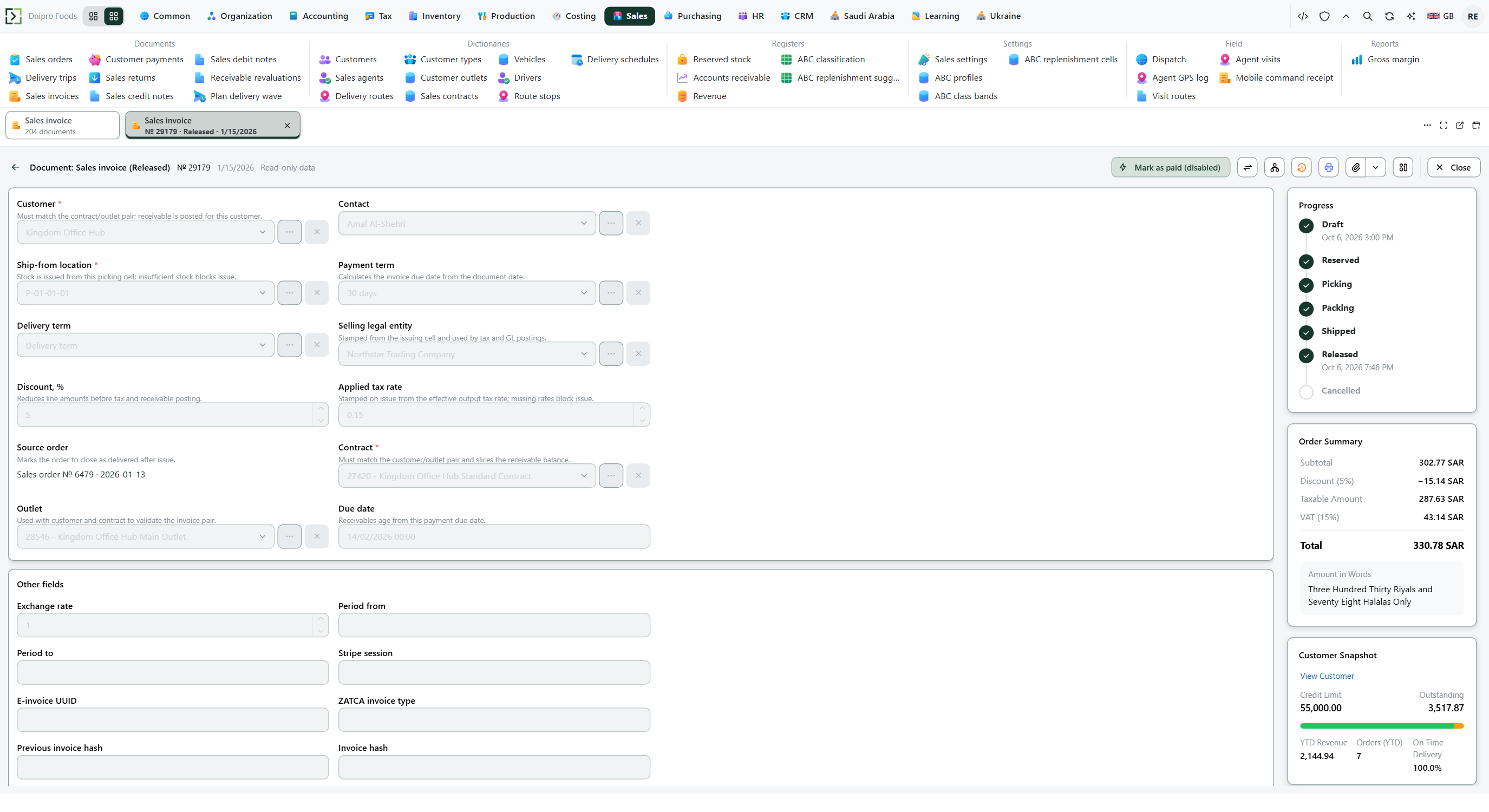 Released sales realization: customer, due date, and locked lines. The state on screen is Released; the stored value is Issued.
The state on the card does not move the realization. Only the command buttons do. Until you press Release realization or Issue realization, the realization writes no debt and no tax.
The realization recalculates Due date while it is editable: the document date plus Default payment term in Sales → Settings → Sales settings. A sales order has no due date. Tax is not a field on this screen.
Delivery note with barcodes prints this realization. It does not post a second document. Gross weight is the item's gross weight times the base quantity. The debt panel is green when the balance after this realization is zero or the balance before it was a credit, blue when this realization alone creates the balance, and red when an older debit remains. The panel does not replace the posted balance. The delivery note has no amount in words and no attached geolocation picture. It uses a map code for the outlet coordinates.
Example
10 pieces at 100, a 10% header discount, VAT 15%.
Goods after discount: 10 × 100 − 10% = 900. Tax: 900 × 15% = 135. The customer owes 1,035. Reserved holds 10.
After Released:
Amount Stock −10 Revenue 900 VAT 135 Customer owes 1,035 The tax is part of the debt. With no tax code, revenue and the receivable are both 900. The print shows 900 net, 135 tax, and 1,035 total. Gross weight 0.25 kg × 10 is 2.5 kg. A prior 200 plus this 1,035 is 1,235, and the panel is red.
Tip
With no default output tax code, release writes no tax. A code with no rate on the document date refuses release. An unconfigured ledger profile does not stop the release; it only means no journal entry is written. Open debt is read from Receivable by customer and contract.
If the command refuses#
| What you see | What to do |
|---|---|
| The command says the realization is empty | Add a line, or return to the source order. |
| The command says stock is short | Receive or pick stock into the ship-from cell, or correct the cell. The check uses free stock and ignores other documents' reservations. It does not block the quantity this realization already reserved. |
| The command says the cell has the wrong purpose | Store discipline is on. Choose a picking cell. |
| The command says a tax rate is missing | Add a rate for the document date before release. |
| The card cannot be edited | The realization is Released. Correct it with a return, a credit note, or a debit note. |
See also
Same topic for other readers: Analyst