Onboard a customer
Updated
Save the company, the customer, the outlet, the item, and the contract before a sales order can name them. Saving these records posts no stock, debt, or tax.
Note
Saving a customer does not create an outlet or a contract. A new customer is stored when Name and Customer type are filled. The contract is signed with that customer: an empty Contract outlets list covers every outlet of the customer, and Selling legal entity may stay empty.
How to#
To onboard a customer, open Ribbon → Organization → Dictionaries → Legal entities.
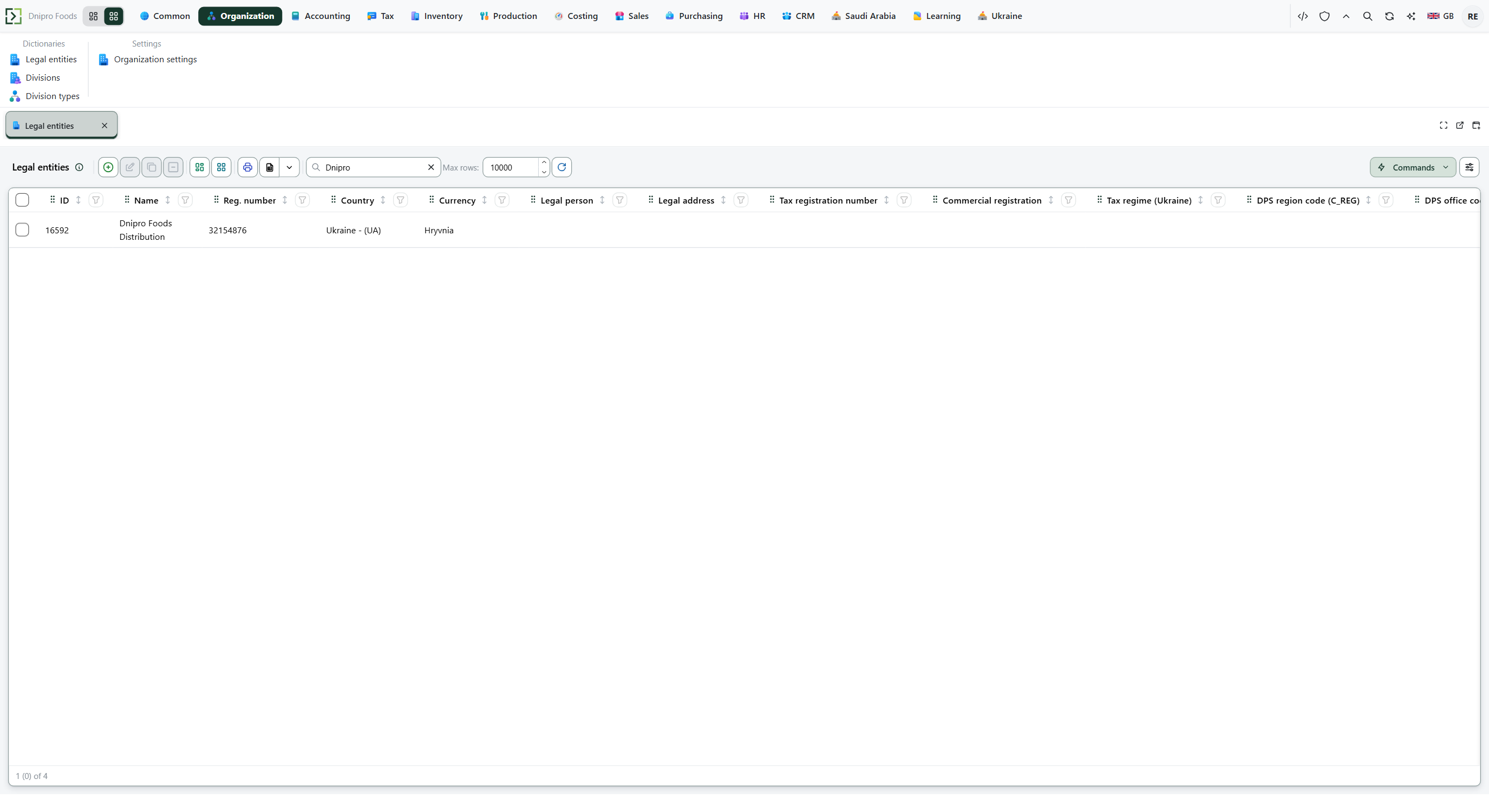 Legal entity list: the search shows Dnipro Foods Distribution. The product is in English.
Press New. Fill Name, Reg. number, Country, and Currency. Save. The list shows the company. ID is issued and is read-only. Reg. number is unique. Currency is already filled when Default currency is set under Ribbon → Common → Settings → Common settings.
Then open Ribbon → Sales → Dictionaries → Customers. Press New. Fill Name and Customer type (Business, Consumer, or Retail). Save. The customer appears in the list. Payment term is already filled when Default payment term is set under Ribbon → Sales → Settings → Sales settings. Phone, Email, Full name, Credit limit, Price type, Tax reg. number, Address, and Notes can wait. Sales → Dictionaries → Customer types holds the types the customer card picks.
Then open Ribbon → Sales → Dictionaries → Customer outlets. Press New. Fill Name and Customer. Save. The outlet is the ship-to of that customer. Address and Contact can wait.
Then open Ribbon → Inventory → Dictionaries → Items.
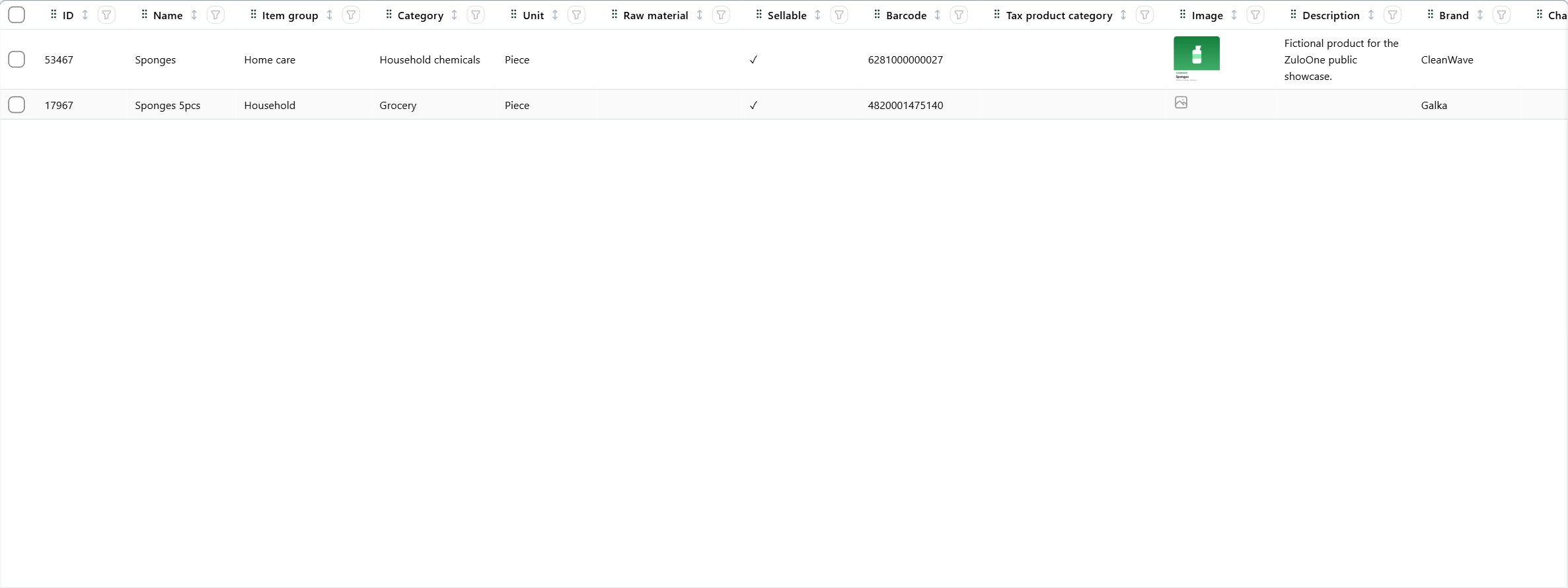 Items list: the search shows Sponges 5pcs. The product is in English.
Press New. Fill Name, Item group, and Unit. Save. The item appears in the list. Sellable can stay off. Prices are kept by price type, outside this card.
Then open Ribbon → Sales → Dictionaries → Sales contracts.
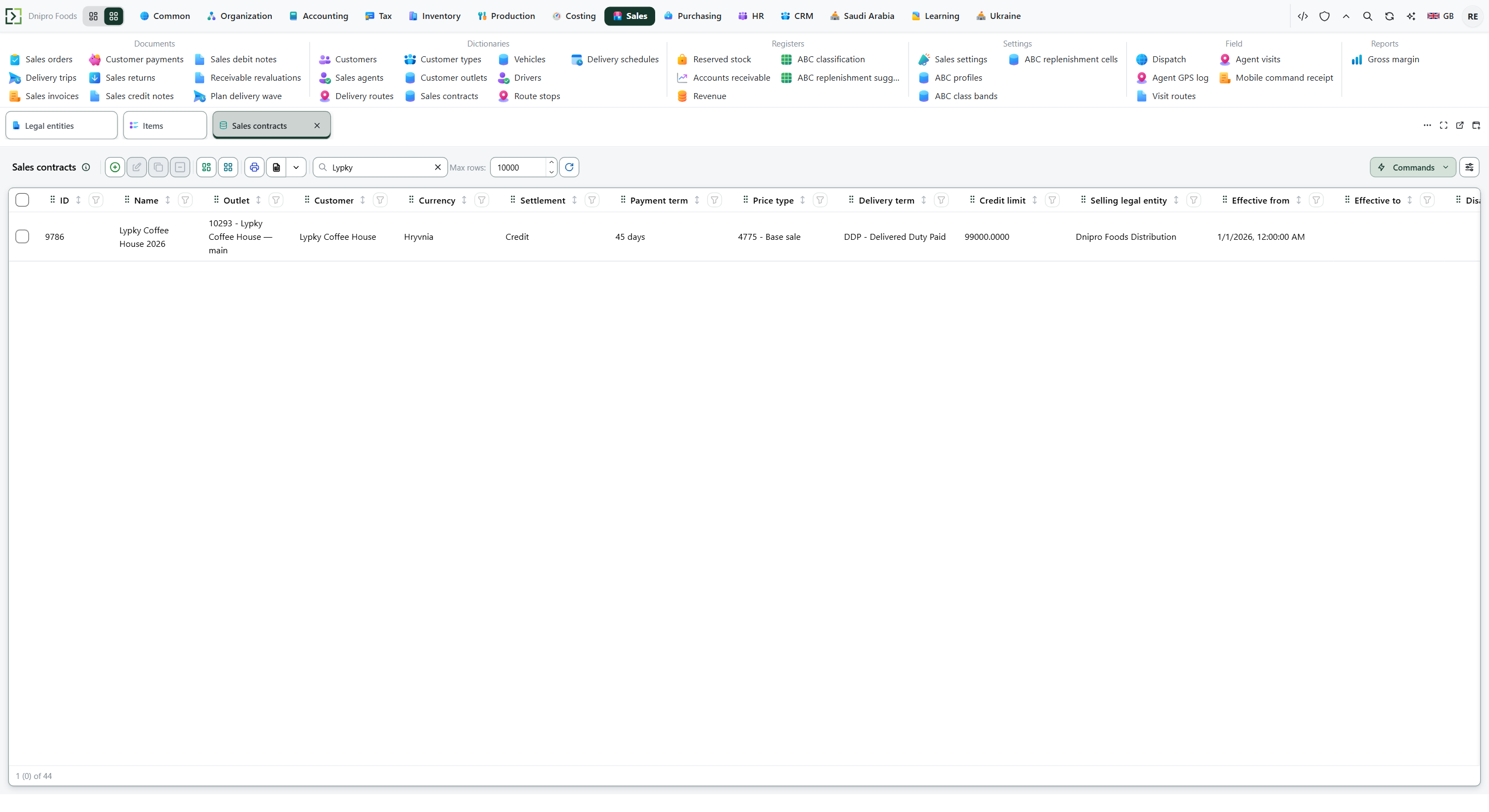 Sales contracts list: the search shows Lypky Coffee House. The product is in English.
Press New. Fill Customer, Name, Currency, Settlement, and Effective from. Settlement is Credit, Prepaid, or CashOnDelivery. Save. The contract appears in the list. Effective from is already today. Currency is already filled when Default currency is set. Selling legal entity is filled only when Default legal entity is set under Ribbon → Organization → Settings → Organization settings. Payment term, Delivery term, Price type, Credit limit, and Effective to can wait.
Leave Contract outlets empty and the contract covers every outlet of that customer. Add a row and the contract covers only those outlets. Each outlet belongs to the same customer.
A sales order can then name this customer and this contract. The order still needs a Ship-from location.
Example
- Default payment term 14 days
- New customer, empty Payment term receives 14 days
- Customer Payment term 30 days stays 30 days
- Empty Default currency: new contract Currency empty, refused until filled
- Default currency UAH: new legal entity and new contract fill UAH
The 14 days is a payment term. It does not change a price.
Tip
Country on the legal entity stays empty until you pick it. When the Ukraine package is installed, the legal entity also has Tax regime (Ukraine) — Ukrainian VAT. One-card paths: Create a customer, Create a sales contract, Create a legal entity.
If the command refuses#
| What you see | What to do |
|---|---|
| The customer is not stored | Fill Name and Customer type. A new customer with no type is refused. |
| The legal entity is not stored | Fill Name, Reg. number, Country, and Currency. A second company with the same Reg. number is refused. |
| The outlet is not stored | Fill Name and Customer. Contact must be a contact of that same customer. |
| The item is not stored | Fill Name, Item group, and Unit. |
| The contract is not stored | Fill Customer, Name, Currency, Settlement (Credit, Prepaid, or CashOnDelivery), and Effective from. Effective to must be on or after Effective from. |
| The contract refuses an outlet | Pick an outlet of this customer. An empty Contract outlets list covers every outlet of the customer. |
See also