Fill prices
Updated
Enter a Base price on the item, or a Calculated price follows another type. A draft sales order copies that price onto the line.
Note
The item has no price of its own. Fill prices fills only an empty Unit price. Posting a document does not write a price back onto the item. Fill prices is not on the sales order: the order fills the line itself while it is Draft. A price type has no currency; the price is a number.
How to#
To fill prices, open Ribbon → Inventory → Dictionaries → Price types.
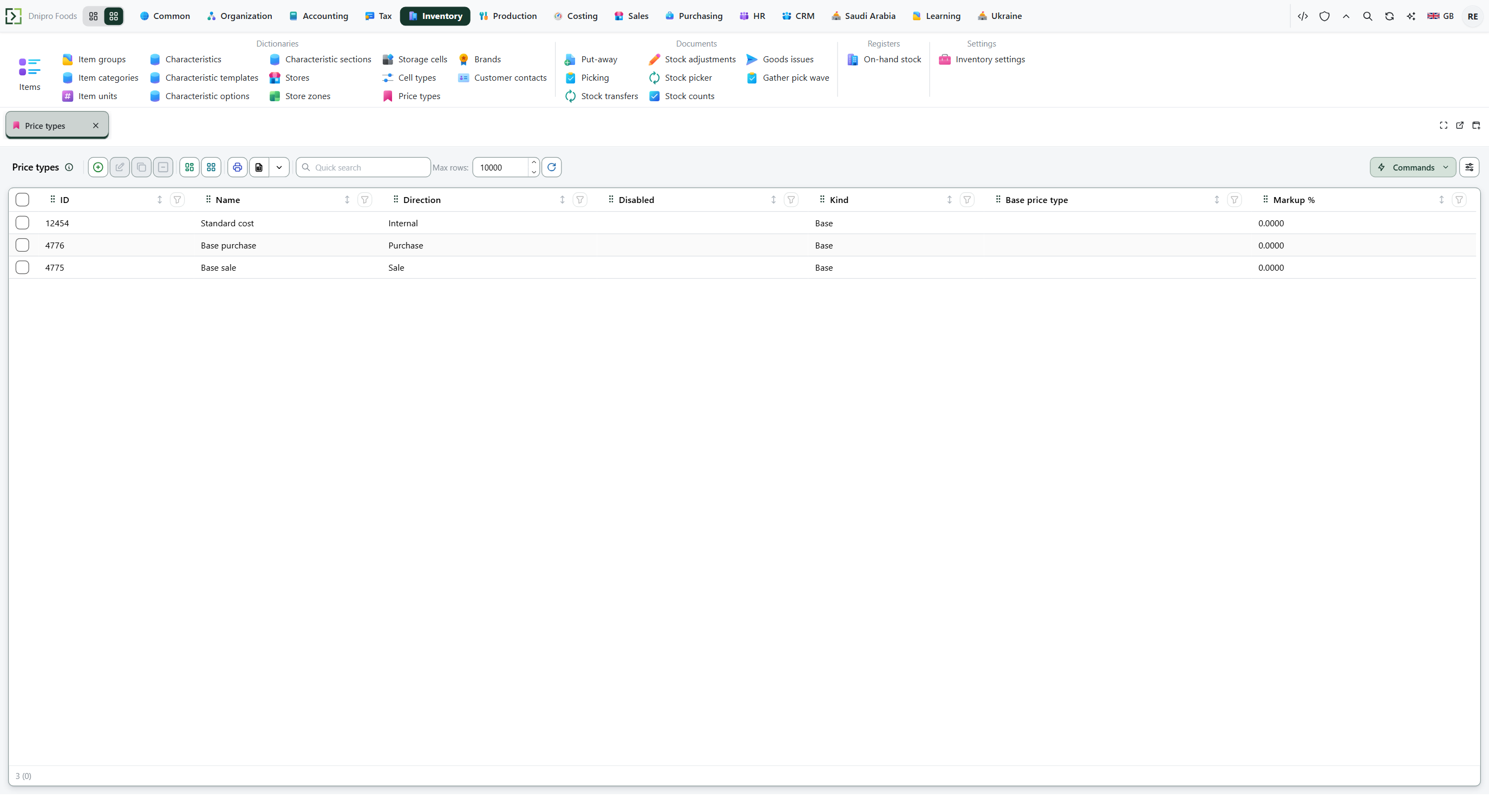 Price types list: Standard cost is Internal, Base purchase is Purchase, and Base sale is Sale. Kind is Base and Markup % is 0. The product is in English.
To add a type, press Create, fill Name, Direction, and Kind, then Save. Direction keeps a sale type off a purchase, and an Internal type off both: it is the standard cost, and it is never the default sale or purchase type. On the card the band is Price assignment rules. The list column Kind is labeled Price type kind there, and Markup % is labeled Markup, %.
Then open Ribbon → Inventory → Dictionaries → Items and open an item. Prices shows one row per active price type, the price valid today, and New prices from.
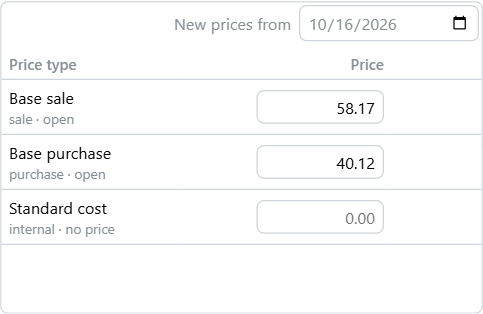 Prices: Base sale is 58.17 and open, Base purchase is 40.12 and open, Standard cost has no price. New prices from is 10/16/2026. The product is in English.
On a Base row in Prices, type the price and press Set or Enter. It starts on New prices from. The line under the table says Price set. Calculated prices follow it. Esc puts the old price back. A Calculated row has no Set. Base price type is required. Markup, % is signed: 35 raises the base, −7 lowers it. Round to and Round up show only for a Calculated type.
A draft sales order fills Unit price when you change Item, Unit, or Quantity. The date is Delivery date. A price you type stays until you clear it.
Open Ribbon → Purchasing → Documents → Purchase orders and open a draft. Fill prices is on the card. It fills a line only when Unit price is empty or zero. A purchase order does not fill the price when you pick the item. The same command is on a sales realization Draft under Sales → Documents → Sales realizations.
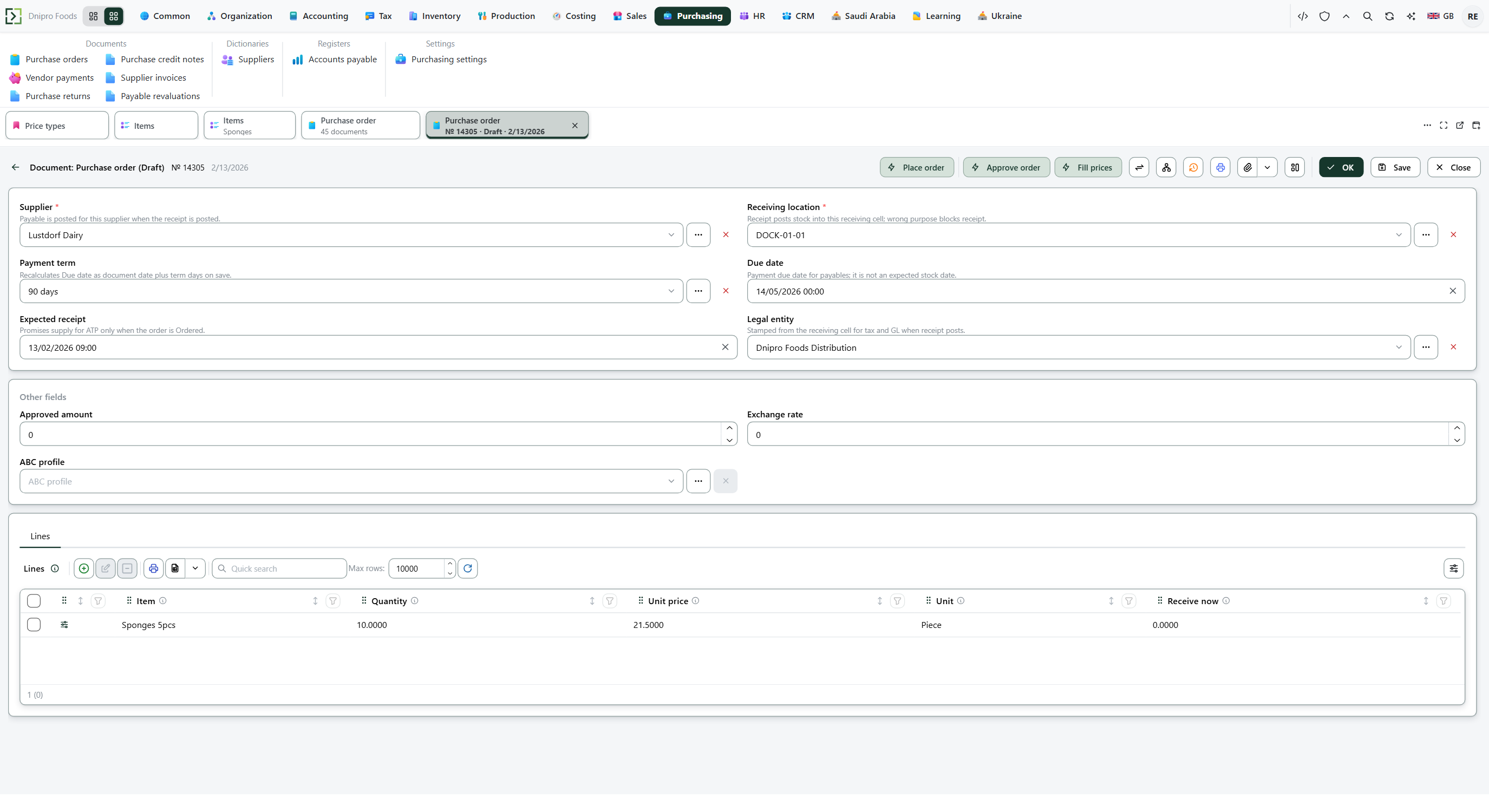 Purchase order Draft: Sponges 5pcs, quantity 10, unit price 21.5000, before posting. Fill prices is on the card. The product is in English.
On a sale the contract's Price type is used first, then the customer's, then Default sale price type in Inventory → Settings → Inventory settings, section Prices. Empty at every step means no price. A contract price for that item and unit replaces the type price. A quantity break on the contract is applied after that.
On a purchase the supplier's own price comes first: a posted supplier price setting or the last receipt from that supplier. Then the supplier's Price type, then Default purchase price type. Under the price types, Prices on the item lists Supplier prices: one read-only row per supplier.
On the item list, open View settings, then Column setup…. Under Computed, expand Price and tick a price type, or expand Stock and tick all stores or a store. Press Save & close. The column title is Price: plus the type name, or Stock: all stores.
Example
- Base 101.37
- Markup, % 35
- Raw 136.8495
- Empty Round to 136.85
- Round to 1, Round up on 137
- Round to 5, Round up off 135
Chain:
- Start 100
- Then +20%, then −5% 114
Each level is rounded before the next markup.
Draft sales realization:
Empty Unit price 100
Typed Unit price 50 stays
Quantity break 5% from 100 pieces 95
Price 32 from 1 October
Effective to 1 November
31 October still 32
From 1 November 35
Effective to is the day the next price starts, and that day is not included.
Tip
Default sale price type empty means the oldest active Base type whose Direction is Sale. Default purchase price type does the same for Purchase. A disabled type is skipped, including a type in the middle of a calculated chain. A calculated type has one markup; quantity steps live on the contract. The text in Price origin is not translated. Creating the type is Create a price type.
If the command refuses#
| What you see | What to do |
|---|---|
| Saving a Base type is refused because it points at another type or has a markup | Clear Base price type and set Markup % to 0, or switch Kind to Calculated. |
| Saving a Calculated type is refused because it has no base | Fill Base price type. |
| A markup of −100% or lower is refused | Use a markup above −100. |
| Set is refused because the price is not above zero | Enter a positive price. |
| Set is refused because the type is calculated | Set the price of the Base type. The calculated row follows it. |
| Fill prices leaves the line empty | Set a price for that item and unit on Prices, for the document date. |
| Fill prices is not on the card | The document is not Draft. The command is on a purchase order Draft and a sales realization Draft. |
| A price row is refused because Effective to is not later than Effective from | Effective to is the day the next price starts. Set it later, or leave it empty. |
See also