Print a price list
Updated
Print the prices of one price type, or save them as a PDF. The window is the same print-form preview as Preview.
Note
This command does not change any price. Numbers are set on the item — Fill prices.
How to#
To print a price list, open Ribbon → Inventory → Dictionaries and press Generate price list.
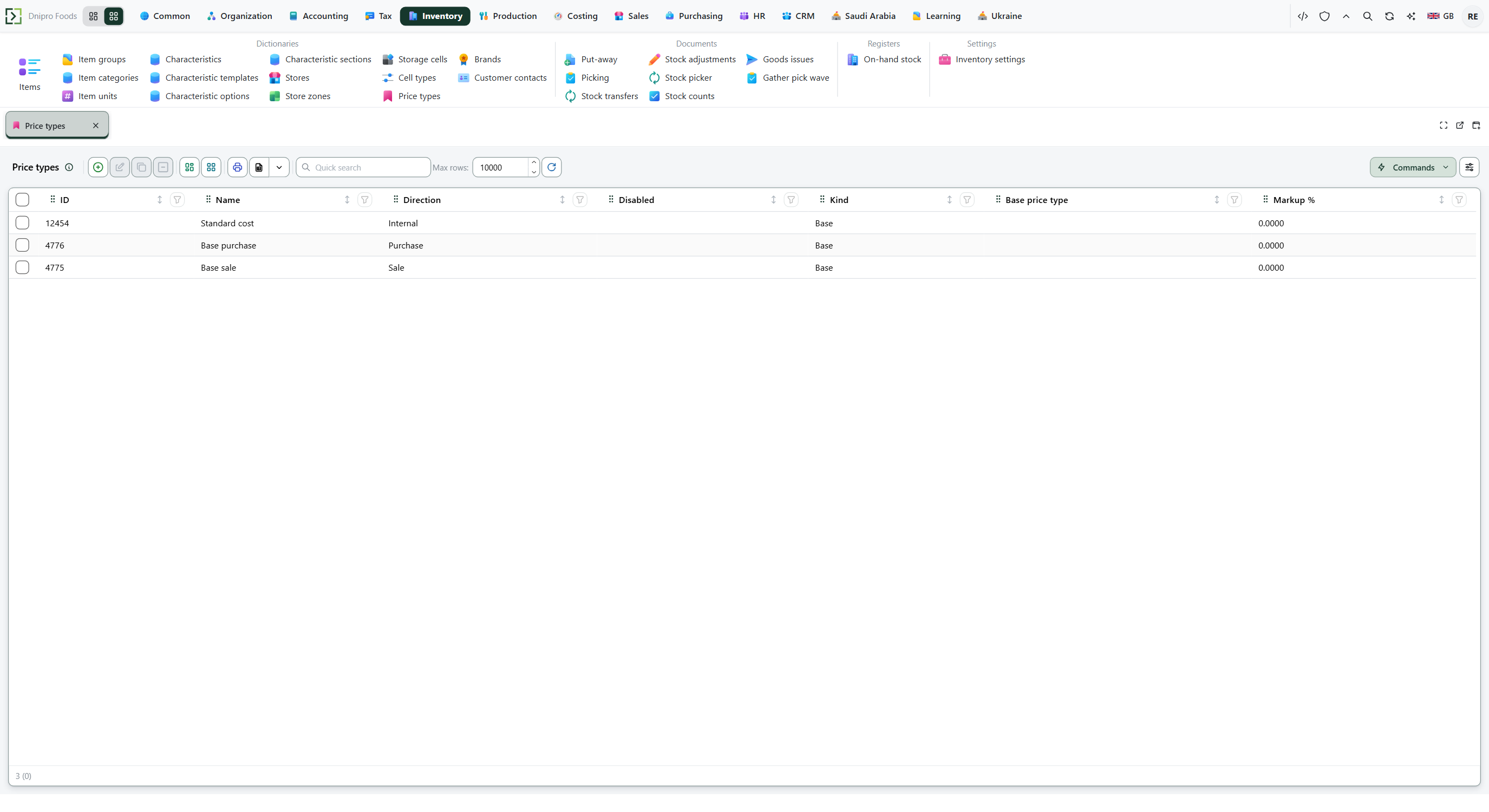 Price types list, next to Generate price list on the same Dictionaries tab. The product is in English.
The dialog asks for Price type. It opens on Default sale price type from Inventory settings. Pick another type if you need it, then press OK.
A preview window opens with the print form bound to that price type. Print sends the page to the printer. Save PDF saves a file. When this stand cannot render a PDF, Save PDF opens the browser print dialog — choose Save as PDF there. If the window already shows a PDF, use the browser's own Print and Save.
Example
- Price type Base sale
OK. The preview lists items at today's Base sale price.
Tip
Inventory ships Price list on Price types (one record). If that form is unbound, the window does not open. Creating the type is Create a price type.
If the command refuses#
| What you see | What to do |
|---|---|
| The dialog will not confirm until Price type is filled | Pick a price type. |
| This price type is disabled. | Open Price types, clear Disabled, and run the command again. |
| No print forms are bound to this object. | Bind a print form to Price types for a record, then run the command again. |
See also